Authenticator App
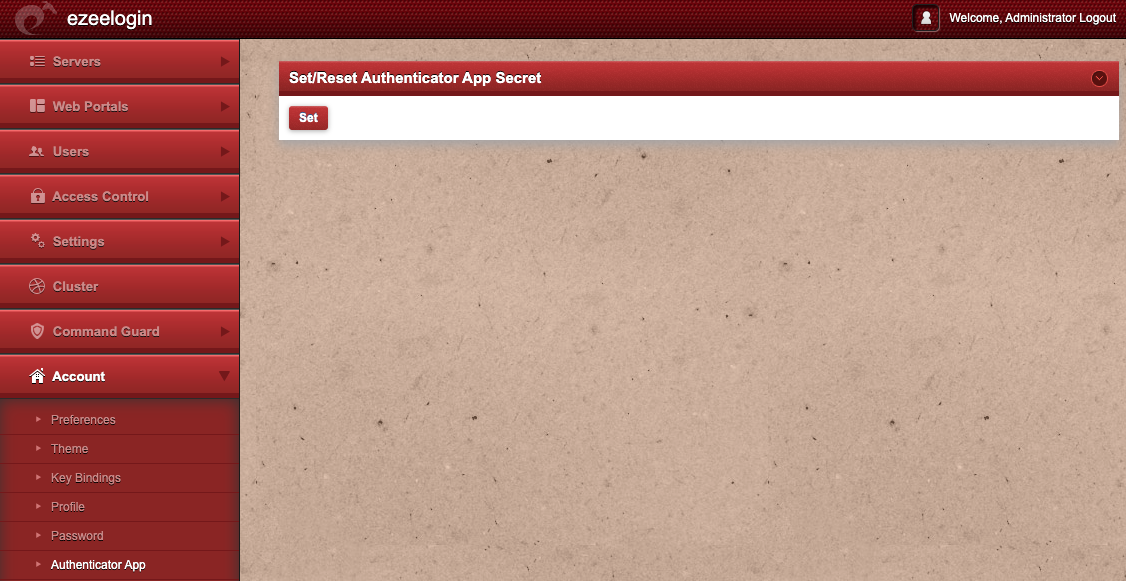
Set/Reset secret for totp based Authenticator App
This option would be visible only if the 2fa mechanism is enabled under settings. In the example below, we are using the Google totp based authenticator application. Use the set/reset button to remove the Google secret keys stored and set a new one and to start using Google Authenticator codes for two- factor authentication. This can also be done using the Reset password but this would reset all the 2FA mechanisms.
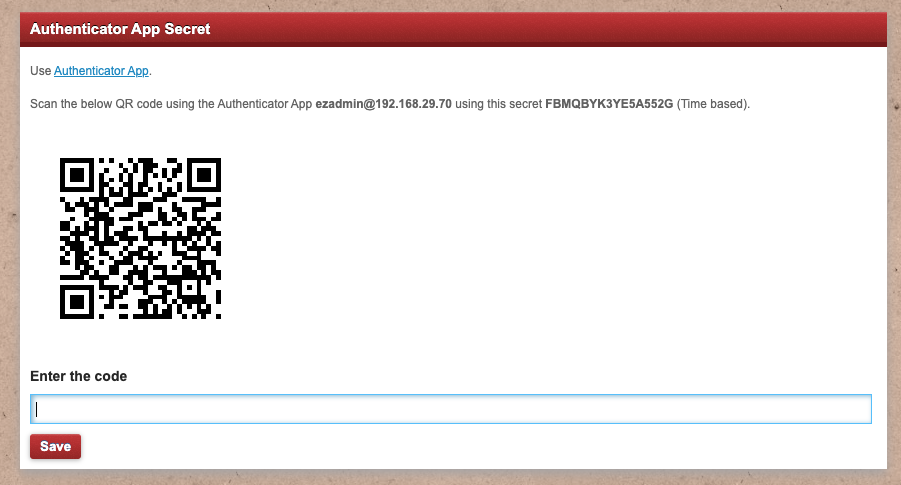
On pressing the set button, the new QR Codes would be displayed. Make sure the TOTP authenticator app (eg: Google Authenticator app) is installed on your phone. Use a suitable QR reader to scan the secret number or manually note down the secret.
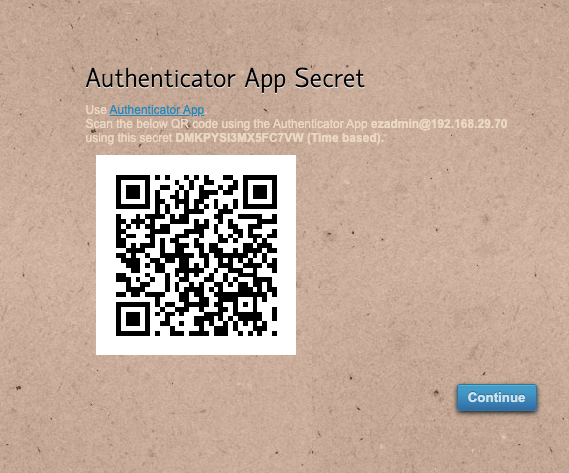
If User does not have any 2FA mechanisms set, then the user would be prompted to to complete the setup on first time login into the webpanel.
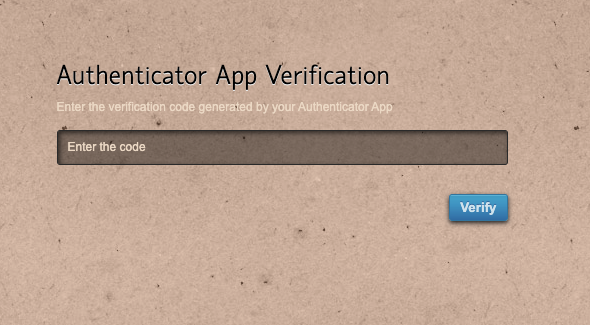
Once this is setup, user would be prompted to enter the codes to login. In the event of loosing your phone, this would have to be reset by another user with admin privileges via web interface.
Use the Authenticator App (eg: Google Authenticator ) which needs to be installed on your phone. Use it scan the QR codes and use it to start generating the codes.