Device Import logs
Overview
Auto Discovery Logs provides a full audit trail of every server discovery attempt made by the auto_discovery.php script — whether run manually or via cron. Each log entry records the discovery profile used, the IP address and hostname of the scanned host, the outcome, and the timestamp. Use this screen to verify successful imports, investigate failures, and audit when and what was discovered.
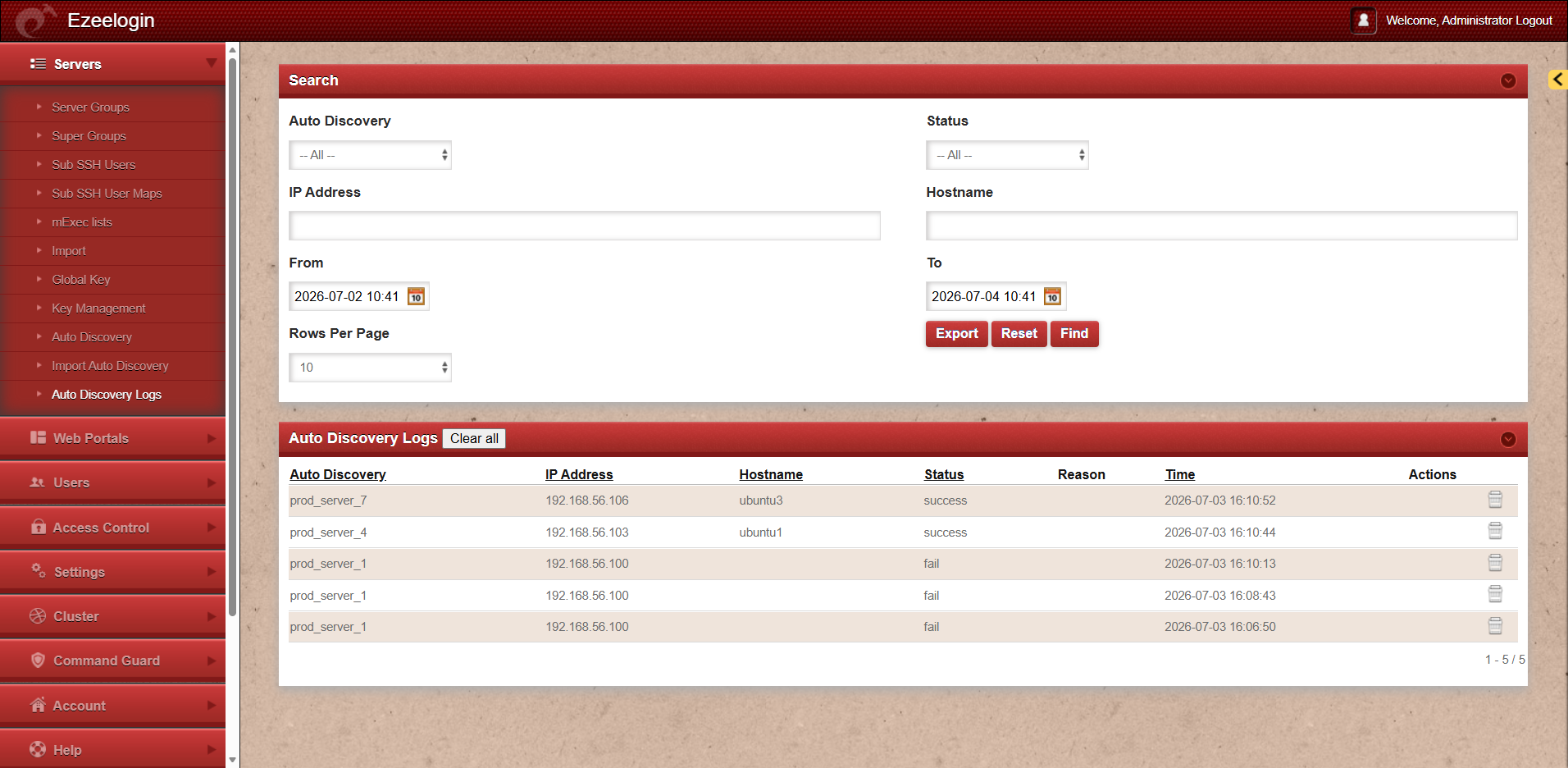
Search
The Search section allows administrators to filter and narrow down auto discovery log entries based on specific criteria before viewing results.
- Auto Discovery A dropdown filter that lists all saved Auto Discovery profiles. Select a specific profile to view logs generated only by that profile. Defaults to -- All --, which shows logs across all profiles.
- Status A dropdown filter to narrow results by outcome. Select success to see only successfully added servers, or a failure status to investigate problems. Defaults to -- All --.
- IP Address A free-text input field to search for log entries matching a specific IP address that was scanned during discovery.
- Hostname A free-text input field to search for log entries by the hostname that was resolved or returned for a scanned host.
- From The start of the date-time range to search within. Accepts input via a date-time picker. Filters results to show only log entries recorded on or after this timestamp.
- To The end of the date-time range to search within. Works together with the From field to define the search window. Filters results to show only log entries recorded on or before this timestamp.
- Rows Per Page A dropdown that controls how many log entries are displayed per page in the results table. Defaults to 10.
- Export Downloads the current filtered log results as a file for offline review, reporting, or compliance record-keeping.
Auto Discovery Logs (results table)
Displays the filtered list of all discovery scan attempts and their outcomes. A Clear all button is available above the table to permanently delete all log entries — use with caution and export first if records are needed.
- Auto Discovery (column) The name of the Auto Discovery profile that initiated the scan attempt for this log entry.
- IP Address (column) The IP address of the individual host that was scanned during the discovery run.
- Hostname The hostname resolved or detected for the scanned IP address during the discovery process.
- Status (column) The outcome of the scan attempt for this host. success means the host was reachable, authenticated, and successfully added as a
server in Ezeelogin.
- Reason (column) Populated only when the status is not success. Describes why the host was not added — for example, SSH connection failure, authentication error, or a hostname conflict with an existing server.
- Time (column) The exact timestamp when this scan attempt occurred, in YYYY-MM-DD HH:MM:SS format.
- Actions (column) Contains a delete (trash) icon for each row. Clicking it removes that individual log entry from the audit trail permanently.