Importing Devices
Overview
The Import Auto Discovery page provides a way to populate the Auto Discovery list in bulk by uploading a CSV file, rather than adding each IP range or CIDR entry individually through the Add Auto Discovery form. Once entries are staged in the list, they become available for the Auto Discovery script to process on its next scheduled or manual run.
Important: Importing a CSV here stages entries in the Auto Discovery list only — it does not create servers in Ezeelogin. Actual server creation and managed SubSSH user provisioning occurs when the discovery script (auto_discovery.php) runs.
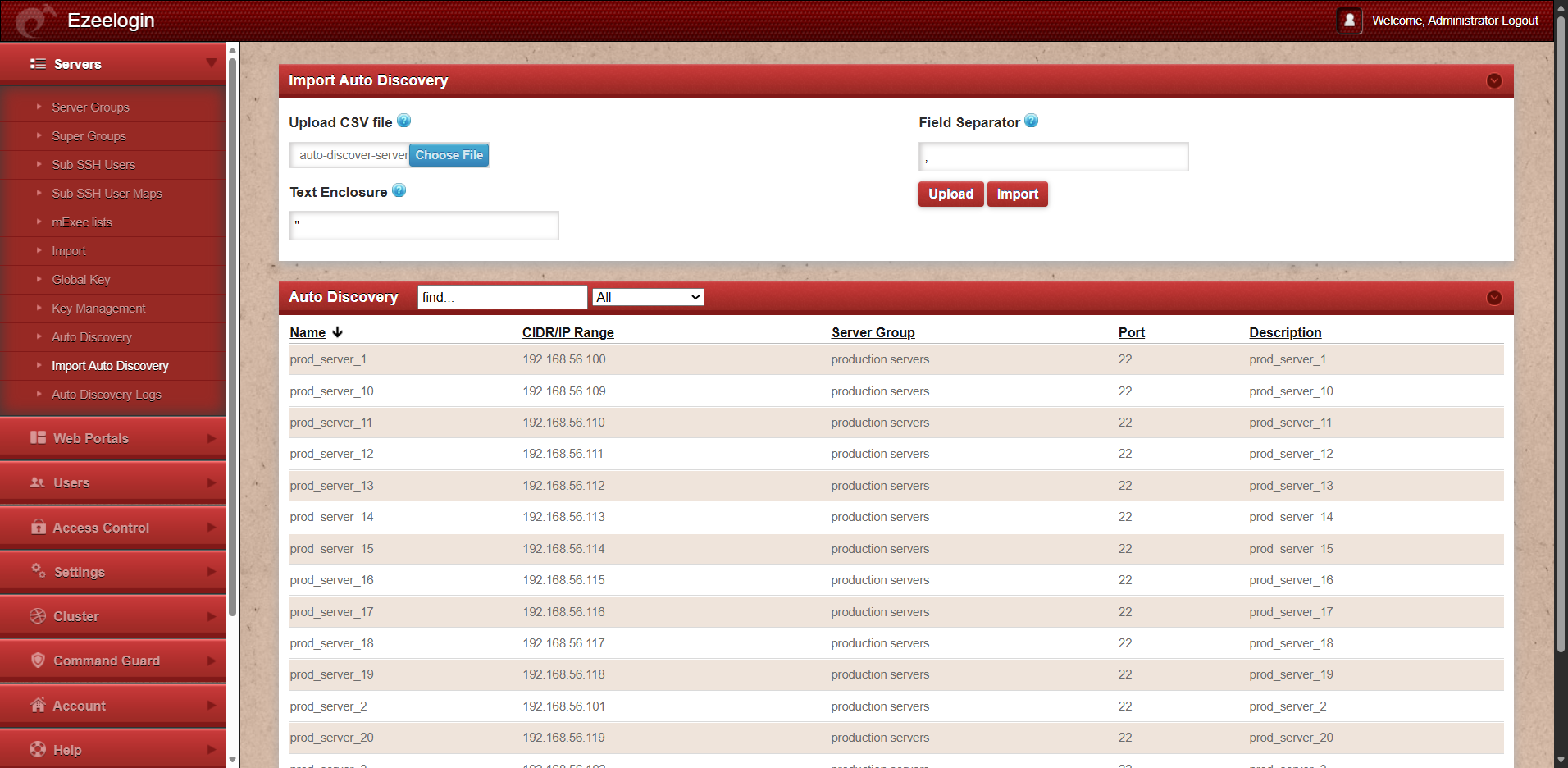
CSV Upload
- Upload CSV fileSelect the CSV file to upload from your local machine using the Choose File button.
- Field Separator The delimiter used between columns in the CSV file. Defaults to comma (,). Change this if your CSV uses a different delimiter (e.g., semicolon or tab).
- Text Enclosure The character used to wrap text values in the CSV. Defaults to double quote (").
Buttons:
- Upload — Uploads the selected file to the server for processing.
- Import — Parses the uploaded CSV and populates the Auto Discovery list with the entries from the file.
CSV File Format
Example:
name,ips,description,port,user,password,keep_password,servergroup
prod_server_1,192.168.56.100,prod_server_1,22,root,password123,S,production servers
prod_server_2,192.168.56.101,prod_server_2,22,root,password123,S,production servers
Notes on the CSV:
All hosts within a single entry's IP range must share the same SSH port, username, and password — Ezeelogin uses these credentials uniformly across the range.
The servergroup value must exactly match an existing server group name in Ezeelogin. If it does not match, the entry will not be associated with any group.
Use the default comma separator and double-quote text enclosure unless your data contains commas, in which case adjust the Field Separator and Text Enclosure fields accordingly before importing.
Auto Discovery List
The lower section of the page displays all currently staged Auto Discovery entries — whether added manually via Add Auto Discovery or imported via CSV.
Once entries are staged in the Auto Discovery list, proceed to run the discovery script:
Manually: php /usr/local/ezlogin/auto_discovery.php
Scheduled: via cron
crontab -l
# Daily at 1:00 AM
0 1 * * * php /usr/local/ezlogin/auto_discovery.php
# Weekly, Sunday at 1:00 AM
0 1 * * 0 php /usr/local/ezlogin/auto_discovery.php
# Monthly, 1st of month at 1:00 AM
0 1 1 * * php /usr/local/ezlogin/auto_discovery.php
Discovered servers will appear in Servers after a successful run. Review results in Servers → Auto Discovery Logs.