Add Devices
Add Auto Discovery Profiles
The form used to create a new Auto Discovery profile. Each profile defines a target IP range or CIDR block, the SSH credentials to use during scanning, and the server settings to apply to all hosts successfully discovered within that range.
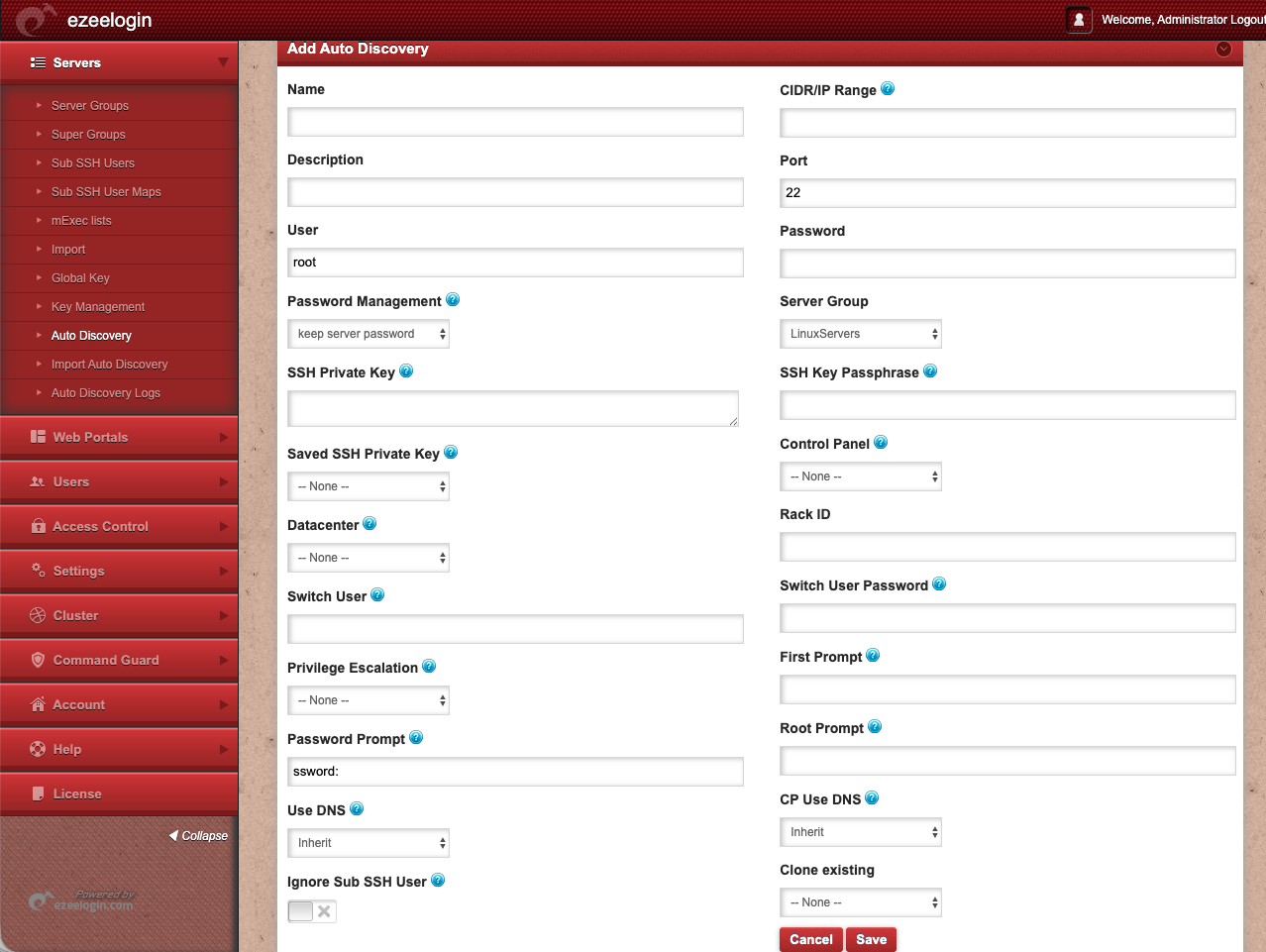
- Name A unique identifier for this Auto Discovery profile. Used to distinguish profiles in the Auto Discovery list and in log entries. Example: prod-servers, aws_servers.
- Description An optional free-text field to describe the purpose, environment, or location of the target range. Appears in the Auto Discovery list for quick reference. Example: webservice, Asia - mumbai.
- User The Remote SSH username Ezeelogin will use when attempting to connect to each host in the defined IP range. Defaults to root. All hosts in the range must share this username.
- Password The Remote SSH password corresponding to the username above. Used by the discovery script to authenticate against each host in the range. All hosts in the range must share this password.
- Password Management Controls how the SSH password is handled after a server is successfully discovered and added. keep server password stores the password in Ezeelogin for ongoing server access — not just for the one-time discovery connection.
- Server Group The existing Ezeelogin server group that all successfully discovered servers will be assigned to on import. The group must already exist before creating the profile. Defaults to LinuxServers.
- SSH Private Key A text area to paste an SSH private key directly. Use this as an alternative to password-based authentication if the target hosts are configured for key-based SSH login.
- SSH Key Passphrase The passphrase protecting the SSH private key entered above, if one is set. Leave blank if the private key has no passphrase.
- Saved SSH Private Key A dropdown to select a previously stored private key from Ezeelogin's Key Management, instead of pasting a key manually. Defaults to -- None --.
- Control Panel An optional dropdown to associate a control panel (e.g., cPanel, Plesk) with discovered servers. Defaults to -- None --. Only relevant if the target hosts run a supported control panel.
- Datacenter An optional dropdown to assign discovered servers to a specific datacenter record in Ezeelogin. Defaults to -- None --.
- Rack ID An optional text field to assign a rack identifier to all servers discovered by this profile. Used for physical infrastructure tracking.
- Switch User The username to switch to after the initial SSH login, for environments where the login user must escalate or change context (e.g., switching from root to an application user).
- Switch User Password The password for the Switch User account, if required when switching context after login.
- Privilege Escalation Defines the method used to escalate privileges after login (e.g., sudo, su). Defaults to -- None --. Use when the SSH user requires escalation to perform administrative tasks on the discovered server.
- First Prompt A custom string that Ezeelogin listens for to detect that the initial SSH login shell is ready. Leave blank unless target hosts use a non-standard shell prompt.
- Root Prompt A custom string that Ezeelogin listens for to detect that privilege escalation is complete and the root shell is ready. Leave blank unless target hosts use a non-standard root prompt.
- Password Prompt The string Ezeelogin matches to detect when a password is being requested during login or escalation. Defaults to ssword: (matches both Password: and password:). Adjust only if target hosts use a non-standard password prompt.
- Use DNS Controls whether Ezeelogin resolves server hostnames via DNS for discovered servers. Inherit applies the global DNS setting configured in Ezeelogin settings.
- CP Use DNS Controls DNS resolution specifically for control panel access on discovered servers. Inherit applies the global setting. Only relevant when a Control Panel is assigned.
- Ignore Sub SSH User A toggle to exclude Sub SSH User handling during the discovery process. When enabled, managed SubSSH users will not be automatically created on newly discovered servers for this profile.
- Clone existing A dropdown that allows this new Auto Discovery profile to be pre-populated by cloning the settings of an existing profile. Select a profile from the list to copy its configuration as a starting point, then modify as needed. Defaults to -- None --.
- Cancel Discards all entries in the form and returns to the Auto Discovery list without saving.
- Save Saves the new Auto Discovery profile and adds it to the Auto Discovery list, making it available for the next discovery script run.