Overview
Overview
Auto Discovery automatically finds and adds servers from a defined IP range or CIDR block, and — for each newly added server — automatically provisions the configured managed SubSSH users. Any host in the configured range that Ezeelogin can successfully SSH into using the supplied credentials is added automatically; unreachable or unauthenticated hosts are skipped. Minimum version: Ezeelogin v7.47.0+
Prerequisites
Ezeelogin v7.47.0 or later.
SSH connectivity from the gateway to the target IP range.
Common SSH port, username, and password across all hosts in a given range/CIDR (the script uses one credential set per Auto Discovery entry).
An existing Server Group to receive discovered servers
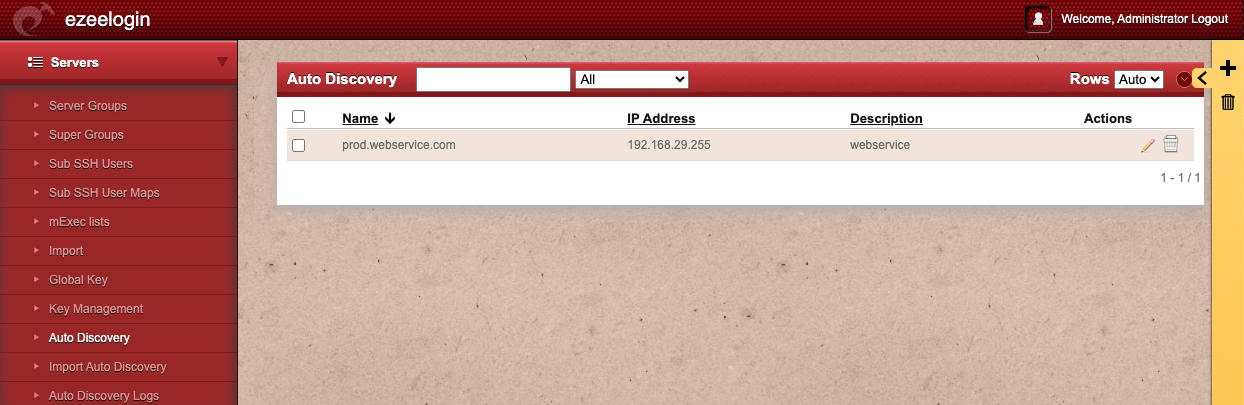
- Auto Discovery (page title / search bar) The main listing page for all saved Auto Discovery profiles. Displays all configured IP range or CIDR scan profiles available for the discovery script to process.
- Search box (text input, top left) A free-text field to search and filter the list of Auto Discovery profiles by name. Type any part of a profile name to narrow the results displayed.
- Server Group filter (dropdown, defaults to "All") Filters the list to show only Auto Discovery profiles associated with a specific server group. Select a group name from the dropdown to narrow results, or leave as All to view all profiles regardless of group.
- Rows (dropdown, top right) Controls how many Auto Discovery profile entries are displayed per page. Defaults to Auto, which adjusts dynamically based on available screen space.
- + (add button, yellow sidebar)Opens the Add Auto Discovery form to create a new discovery profile manually. Use this to define a new IP range or CIDR block, along with the SSH credentials and server group settings for that scan target.
- Delete (trash icon, yellow sidebar) Bulk-deletes all selected Auto Discovery profiles. Select entries using the checkboxes on the left before clicking this button. This action is permanent.
Auto Discovery (results table)
Lists all saved discovery profiles with their key details.
- Name The unique label assigned to this Auto Discovery profile when it was created. Sortable — click the column header to sort alphabetically. Clicking a name opens the profile for editing.
- IP Address The IP address, IP range, or CIDR block configured for this discovery profile — the target range the script will scan when this profile is executed.
- Description The optional free-text description entered when the profile was created. Useful for identifying the purpose, location, or environment of the target range (e.g., webservice, Asia - mumbai).
- Actions Contains per-row action icons for managing individual profiles.
- Edit icon (pencil, Actions column) Opens the Edit Auto Discovery form for that profile, allowing the name, IP range, credentials, server group, and all other settings to be updated.
- Delete icon (trash, Actions column) Permanently deletes this individual Auto Discovery profile. The profile will no longer appear in the list and will not be processed on the next script run.