User privilege escalation
Granting Temporary Root Access to a Gateway User via Ezeelogin
Overview:This article explains how a gateway user can obtain temporary root access with administrator approval. By adding the server to the Ezeelogin GUI and enabling the Sub SSH feature, the user initially logs in with limited privileges. Once the required permissions are granted, the user can retrieve the root password using the 'ezinfo' command and manually switch to the root account.
.png)
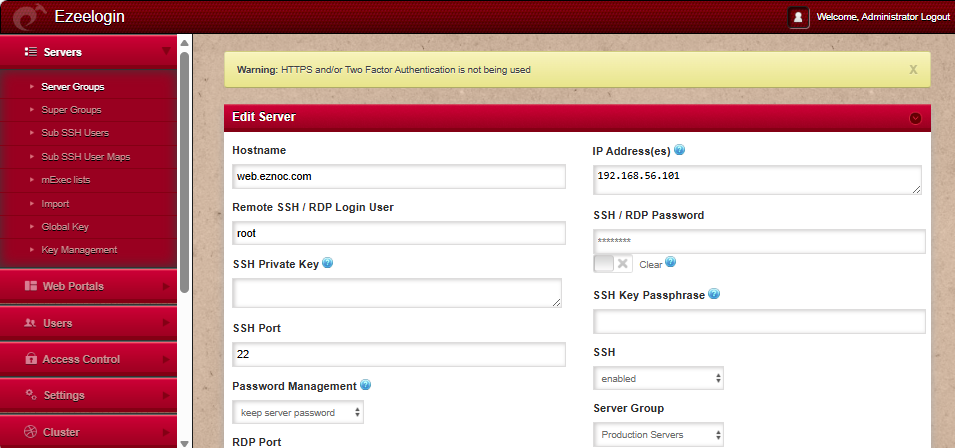
Step 1. Configure Remote SSH Login User
In the Ezeelogin GUI, add or edit the server and set the Remote SSH login user as root.
Step 2. Configure Sub SSH Access
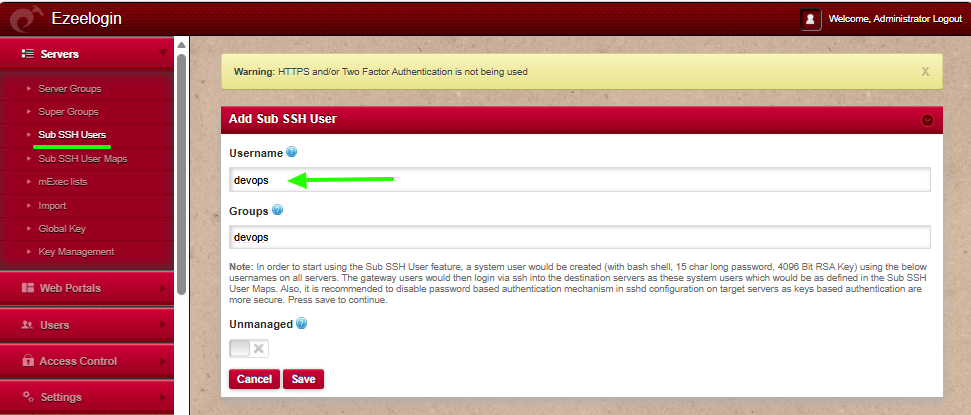
Step 2(A): Create SubSSH user
Create a SubSSH user from the GUI.
Step 2(B): Map SubSSH User to Group
To map a SubSSH user based on groups, go to Sub SSH User Maps, then select the user group, SubSSH user, and server group.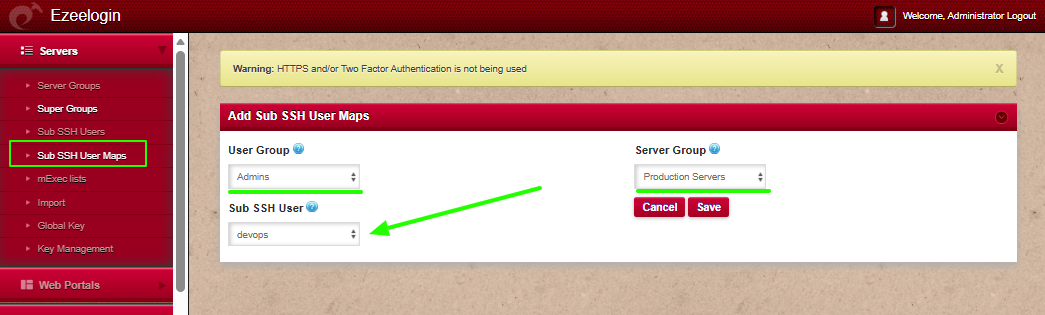
OR Step 2(C): Map SubSSH User to Individual User
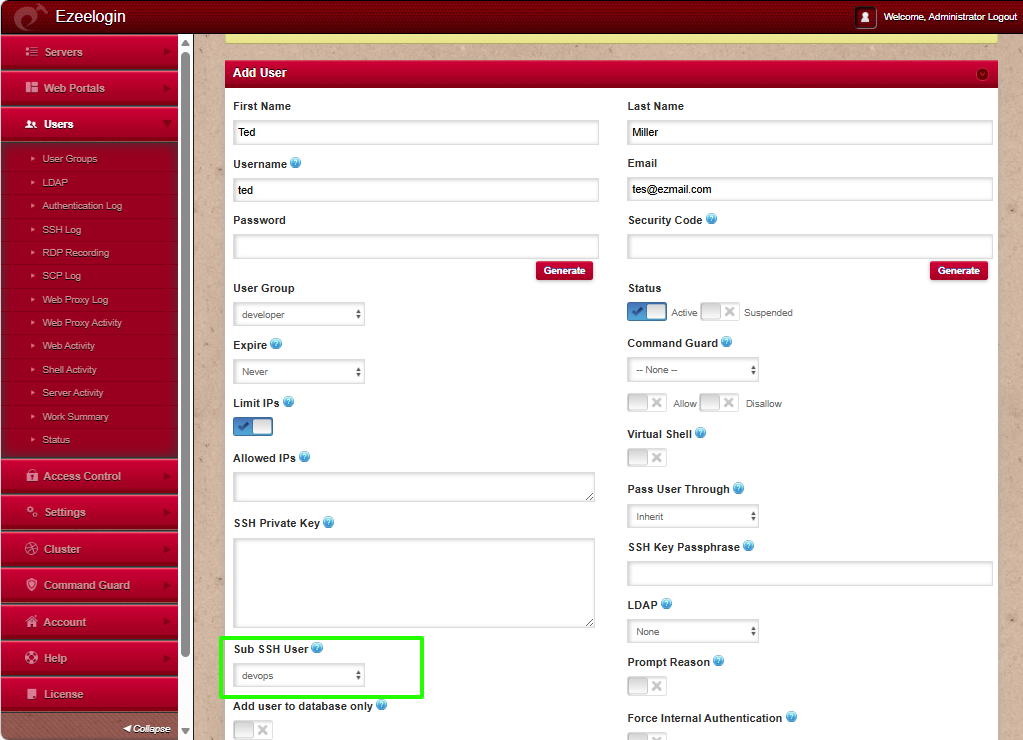
To map SubSSH user for an individual gateway user, edit the gateway user and select the sub ssh user.
Step 3.Grant Required Permissions
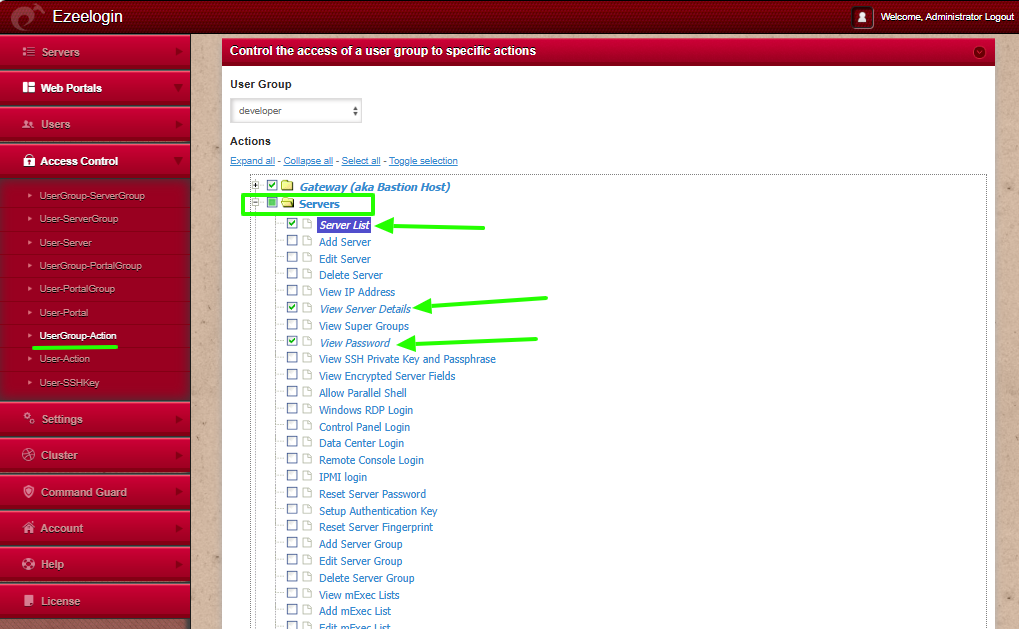
Grant privilege for the user to view server password from Access control -> UserGroup_action OR User_action-> enable Serverlist,view server details and view server password
Step 4:Retrieve Root Credentials
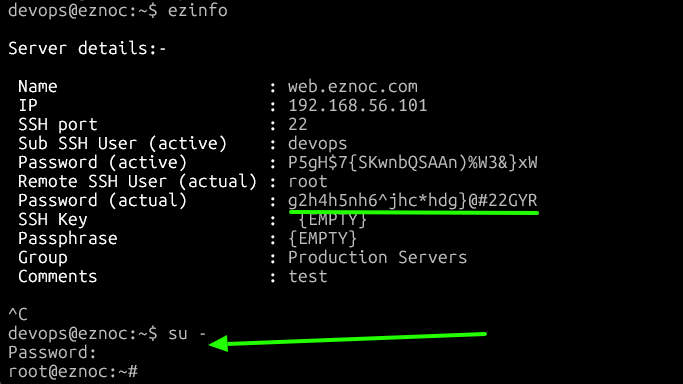
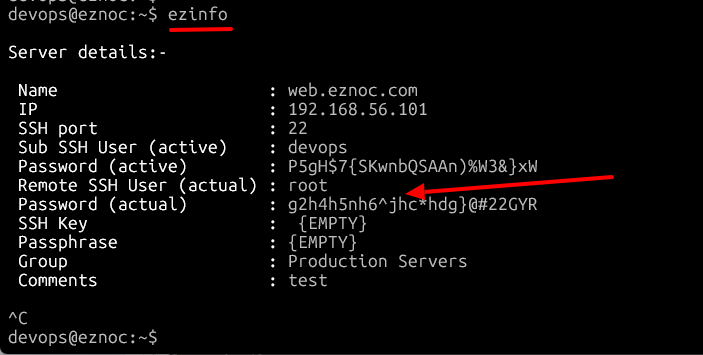
Login to the remote server (web.eznoc.com) via ezsh and type the command " ezinfo ", you'll see the server details and the root credentials as follows
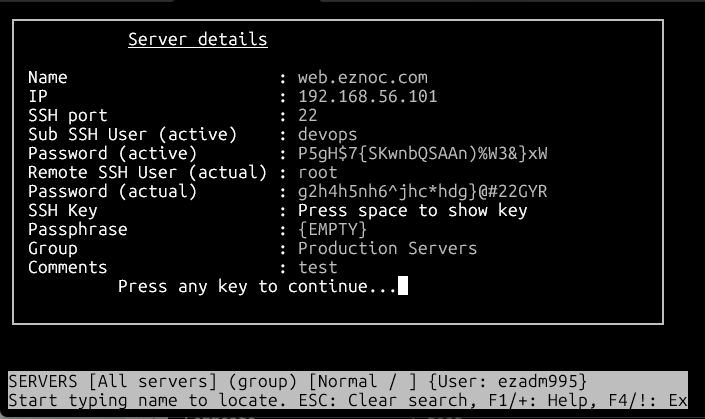
or press tab key after selecting the server
Step 5: Switch to Root User
Copy the root password and manually login to the server by the following command
devops@localhost:~# su -