Can we map existing user group in ldap to Ezeelogin as Ezeelogin user group?
How can an existing LDAP user group be mapped to the Ezeelogin user group?
FAQ:
- How to assign a user group for LDAP users?
- Is it possible to change the user group for LDAP users?
- Is it possible to use the same group name assigned in LDAP in Ezeelogin user groups as well?
Overview: This article will help the admin user of Ezeelogin to map groups used by users in LDAP. The admin user needs to create user groups in Ezeelogin with exactly the same names used in LDAP and can set priority to auto-create users to the higher priority groups. In this way, users from LDAP will have the same groups in Ezeelogin as well.
Note:
1. If users from the OIDC provider need to be auto-created in the corresponding group from OIDC to the same group in Ezeelogin, the admin user must set the default user group to None. If the same group is not present in Ezeelogin, the user will not be auto-created.
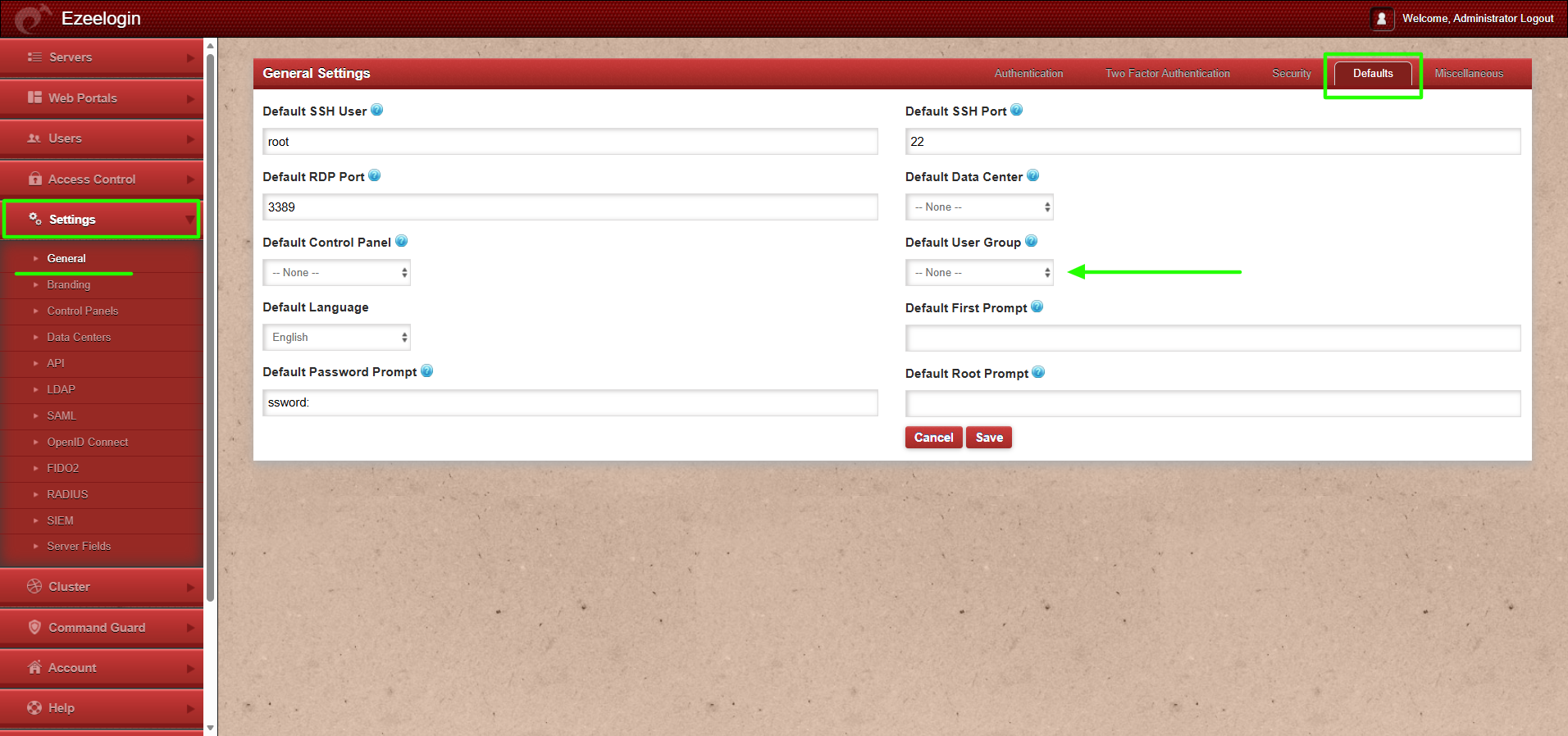
2. If the default user group is set to any group other than None, then all users from the OIDC provider will be auto-created in that same group.
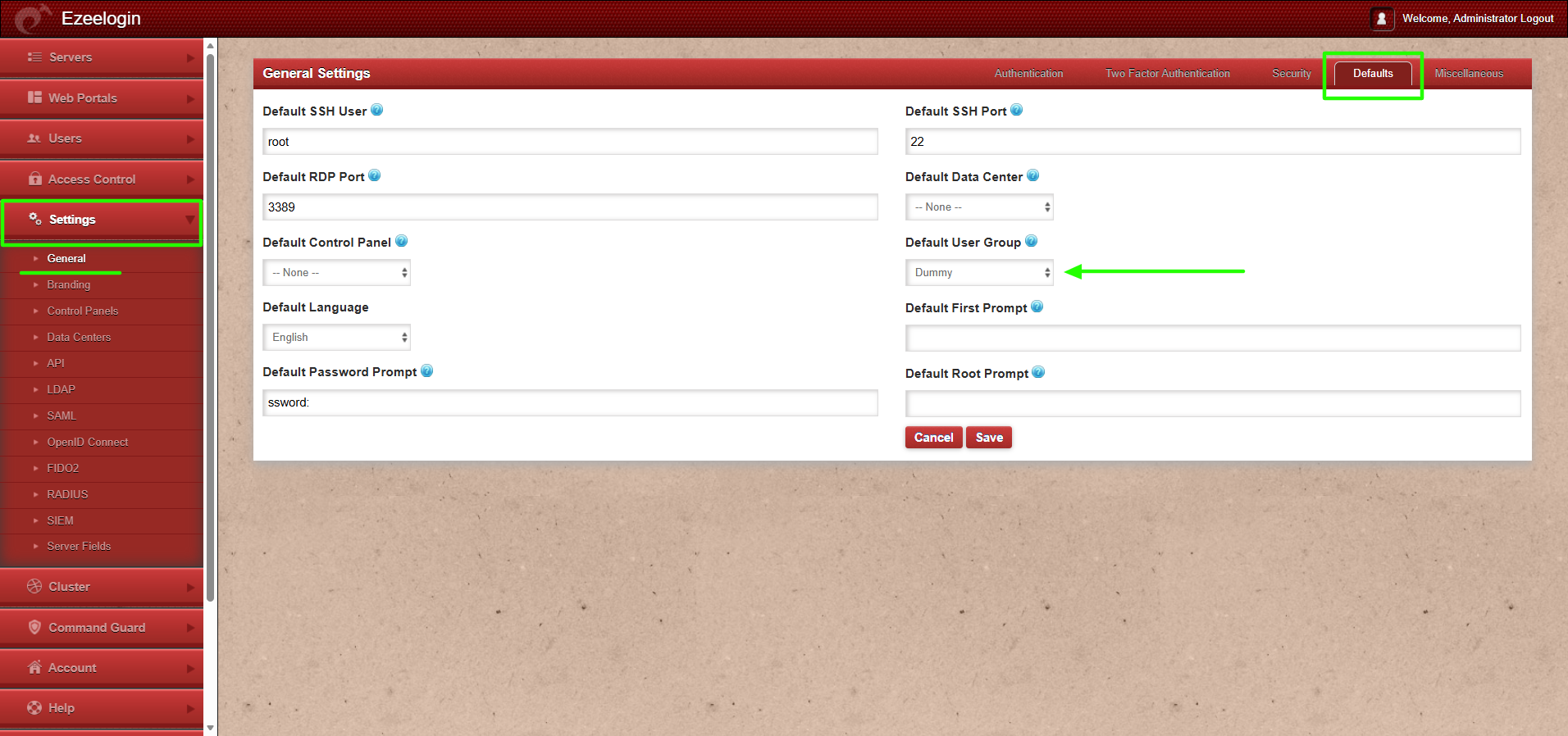
This feature is available from Ezeelogin version 7.46.0. Refer article to upgrade Ezeelogin to the latest version.
Note:
User attributes (such as groups and other mapped fields) are automatically updated in the Ezeelogin GUI when a user authenticates again. If any attribute of an existing LDAP user is changed in the identity provider after the user has already logged in, the change will appear in the GUI only after the user logs out and logs back in.
For example, if a user is moved to a different group in the LDAP provider (such as Windows Active Directory), the updated group will be shown in the Ezeelogin GUI after the user logs in again.
This feature is available from Ezeelogin version 7.46.0. Refer article to upgrade Ezeelogin to the latest version.
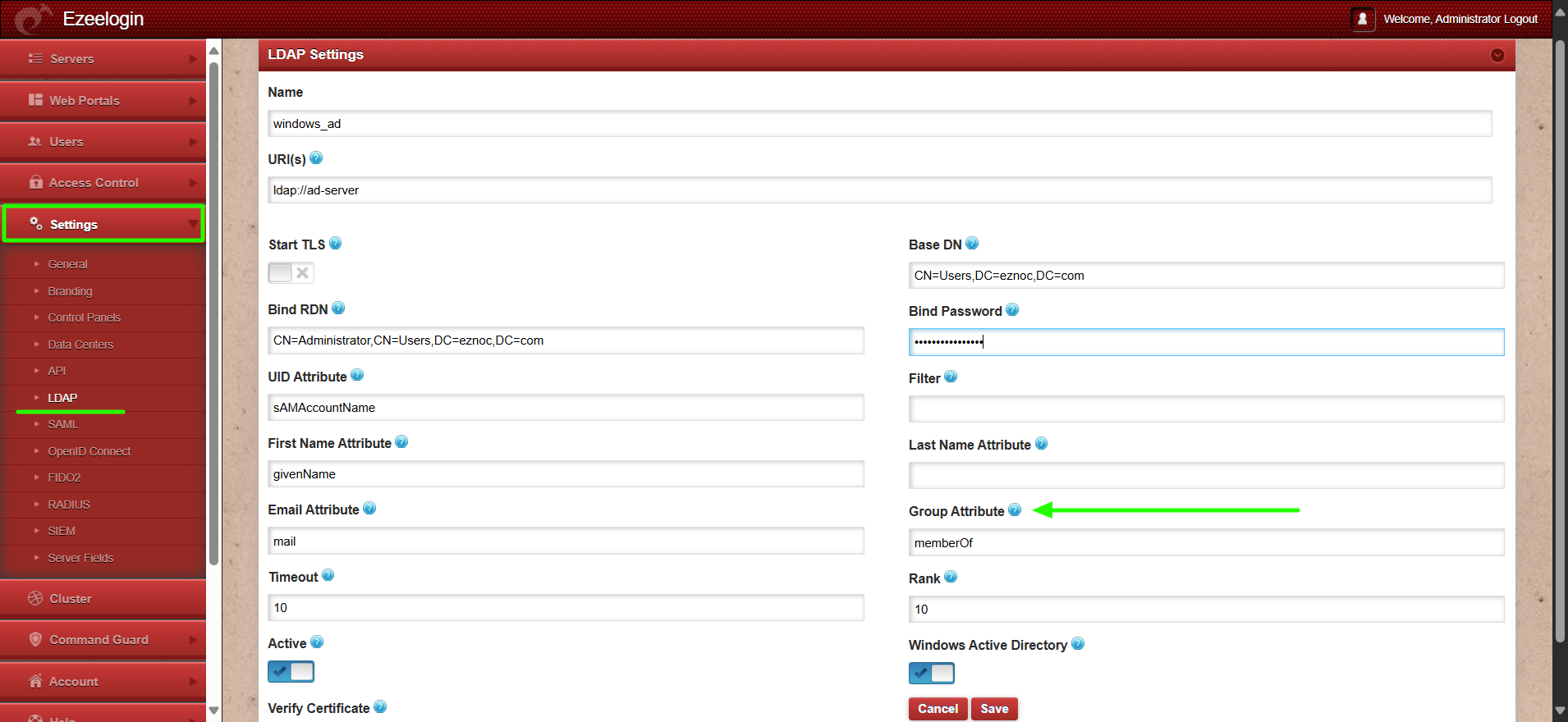
Step 1: Make sure to provide the 'Group Attribute' to identify user groups in the LDAP server.
Step 2: Create the user group within Ezeelogin GUI by the same name as in LDAP. The LDAP users would be automatically assigned to the same user group within Ezeelogin as it is in LDAP.
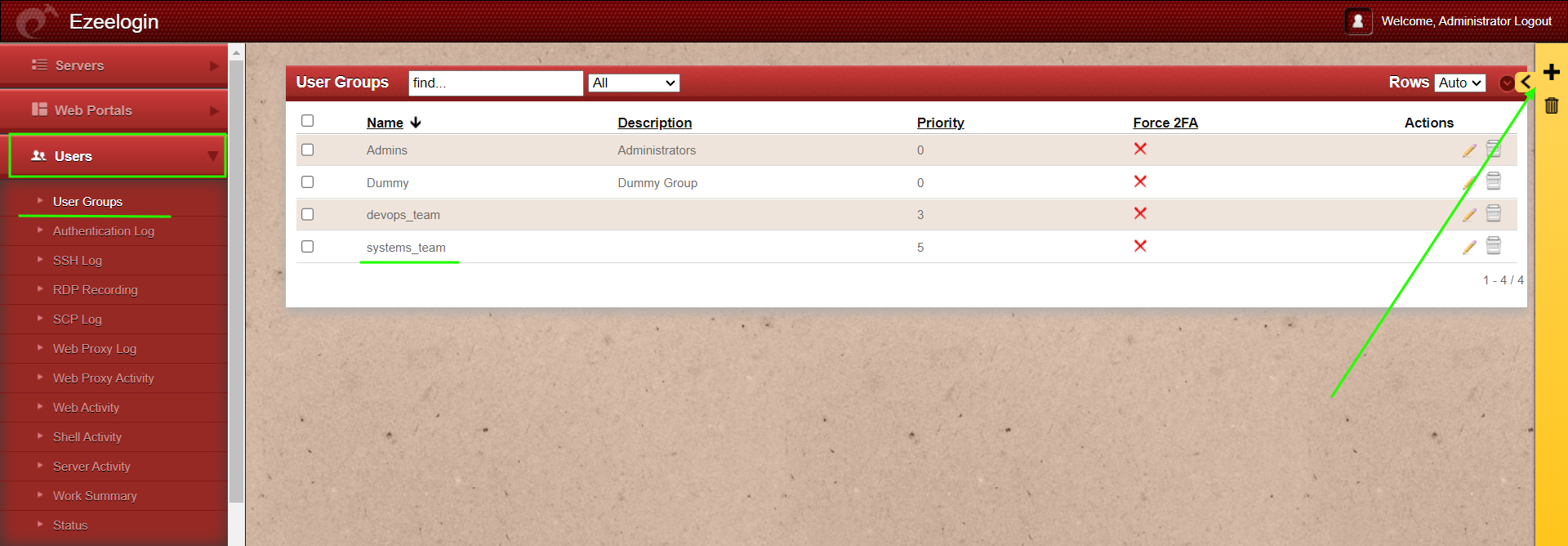
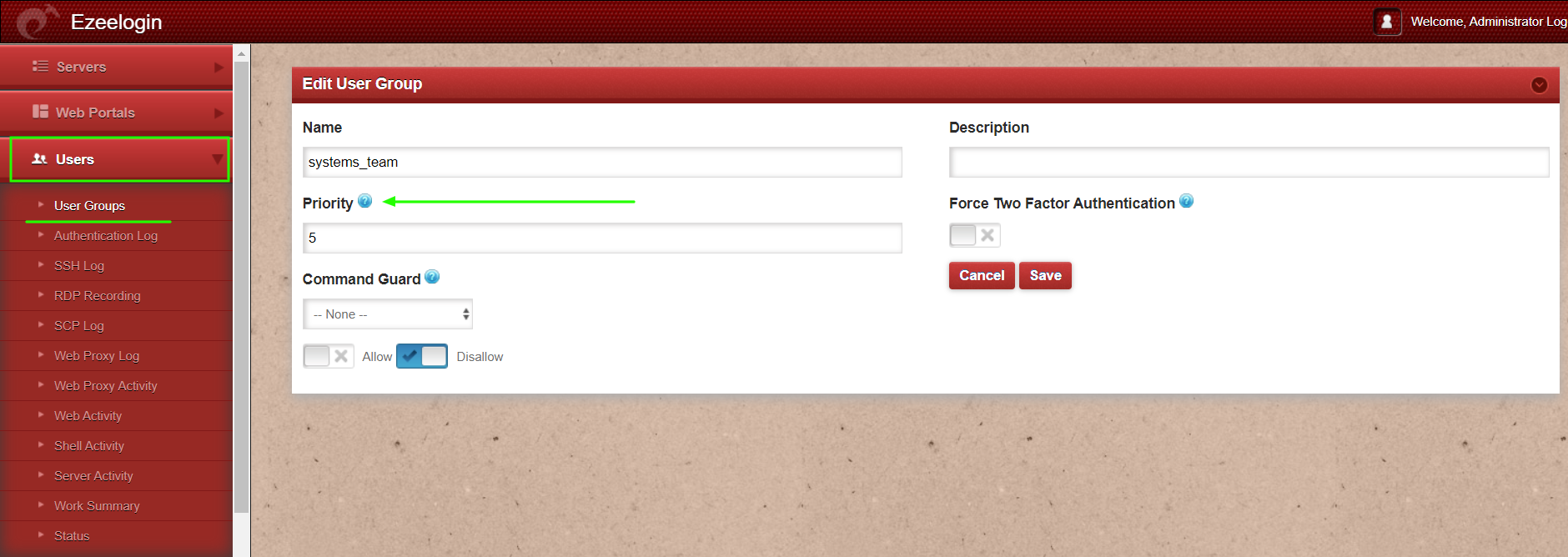
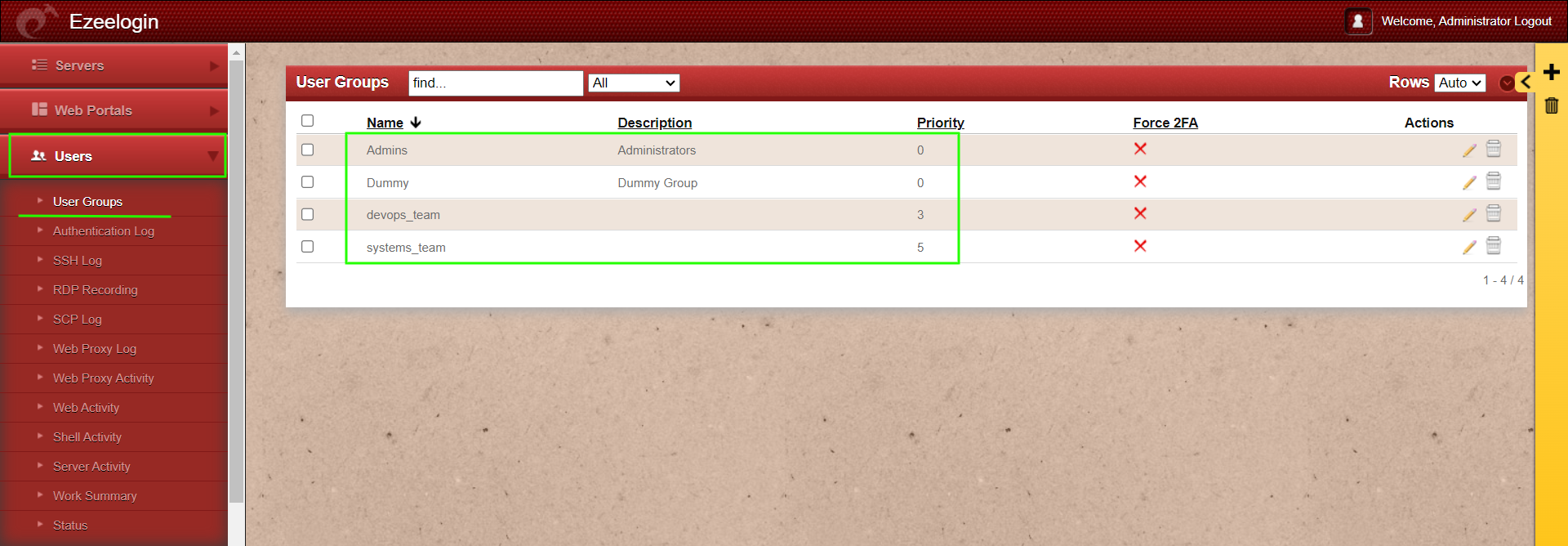
Step 3: Set priority if the LDAP user belongs to multiple groups in LDAP. The LDAP user will be imported to the highest priority group. Add or edit user groups and set priority.
If a user exists in multiple user groups, then the user will import to the user group having higher priority.
Example: If a user called Marc is a member of the DevOps team & system team and if we give the highest priority to the system team(priority 5) and lowest to the DevOps team (priority 3), the user Marc will be imported to the user group system team since it has higher priority (5).
Related Article:
Map existing usergroup from SAML to Ezeelogin usergroup.
Can we authenticate internal user along with existing ldap authentication?
How to integrate OpenLDAP or Windows Active Directory into Ezeelogin?
Error: LDAP extension is not installed
How to use the LDAP password as the security code on user login in SSH?