2FA Timeout in Ezeelogin
2FA Timeout in Ezeelogin
Overview: This article explains the steps to achieve 2fa timeout feature in Ezeelogin showing how it enhances security during the authentication process. The feature allows administrators to configure the duration for which a two-factor authentication request remains valid. By setting an appropriate timeout period, organizations can strengthen security controls while ensuring a smooth authentication experience for users.
Note:This feature is available from Ezeelogin version 7.47.0. Refer article to upgrade Ezeelogin to the latest version.
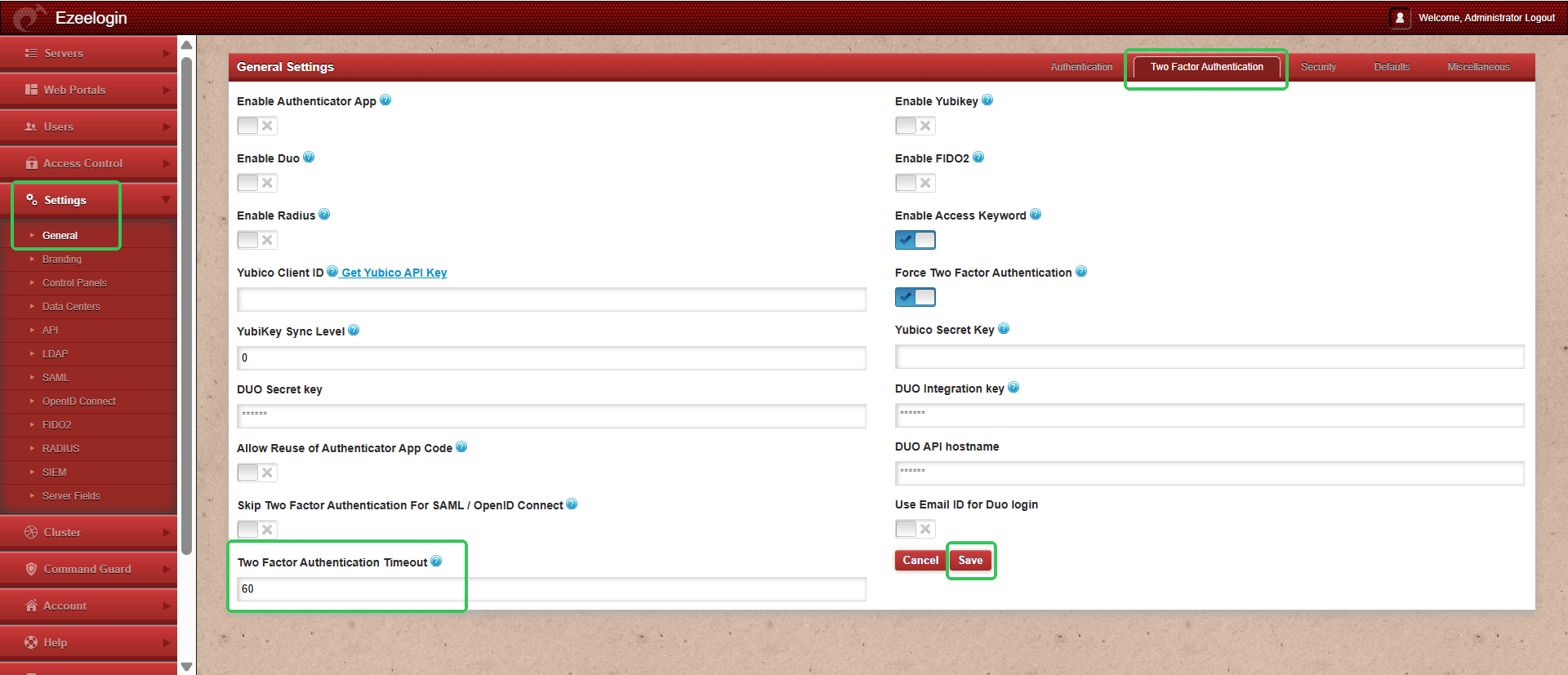
Step 1: Log in to the Ezeelogin web interface. Navigate to Settings → General → Two Factor Authentication and configure the 2FA Authentication Timeout value (in seconds). In the example below, the timeout is set to 60 seconds (1 minute). Click Save to apply the changes.
Note: Close authentication session if there is no 2fa input received for the specified seconds. Set to 0 for no timeout.
Step 2: Log in to Ezeelogin and verify that the configured 2FA timeout setting has been applied successfully.
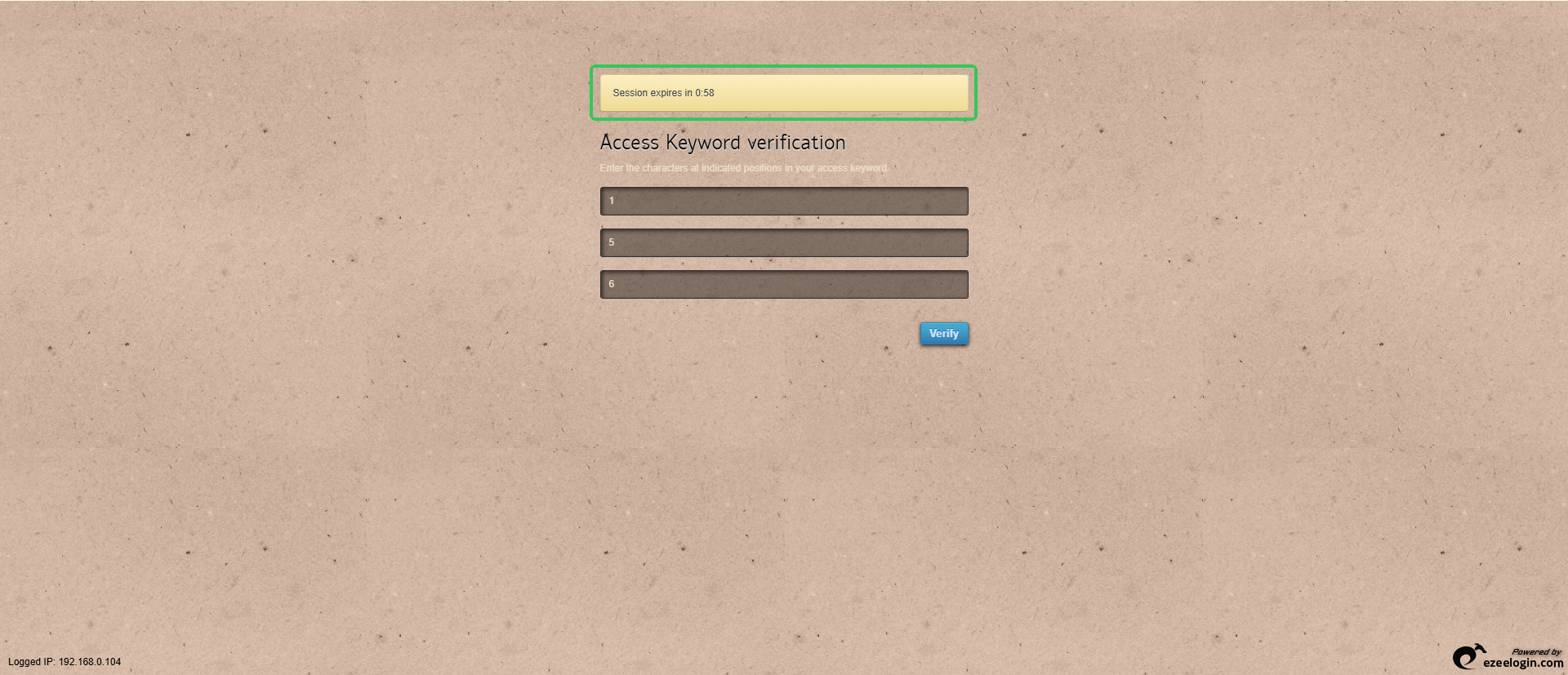
The configured 2FA timeout applies to the backend authentication session during SSH login. If the timeout period is exceeded before the authentication process is completed, the session will expire and the user will be required to initiate a new authentication request.
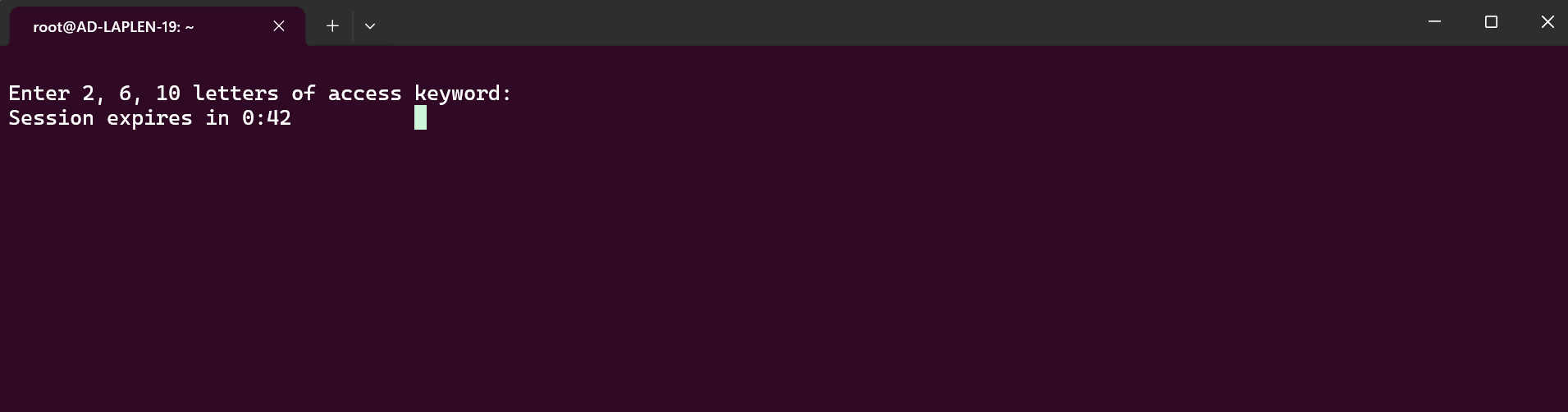

The 2FA Timeout feature in Ezeelogin provides administrators with greater control over the validity period of two-factor authentication sessions. By configuring an appropriate timeout value, organizations can enhance security while ensuring a seamless login experience for users. Once the setting is saved, the specified timeout is automatically enforced during the authentication process.
Related Articles: