How to map different SubSSH users to different server groups in Ezeelogin
How a gateway user can login to different servers with different SubSSH users?
Overview: This guide explains how to configure SubSSH user mapping in Ezeelogin so that a gateway user can access different servers using different non-root SSH users. This approach enforces least-privilege access, where each server group is accessed via a dedicated non-privileged system user instead of root. This setup is also known as SSH user mapping, sub-user login, or role-based SSH access control.
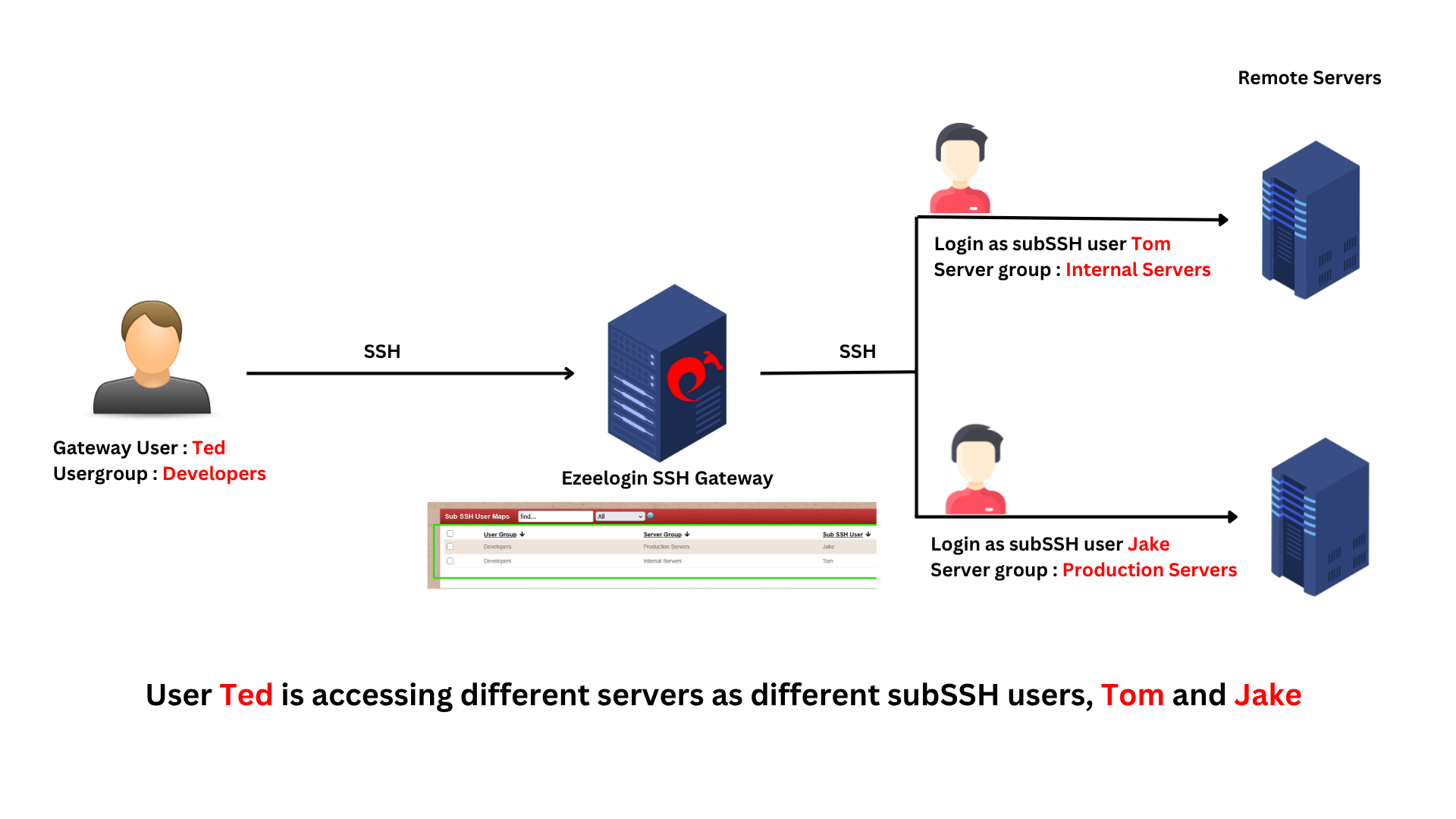
To access different servers with distinct SubSSH users, it's possible to map various SubSSH users with different server groups using the SubSSH user map option in the Ezeelogin GUI.
SubSSH user means it adds system users on remote servers. Enables you to login as those non-privileged users remotely instead of root.
Follow the steps below to log in to a different server with different SubSSH user.
Step 1: Create a user and assign them to a user group.
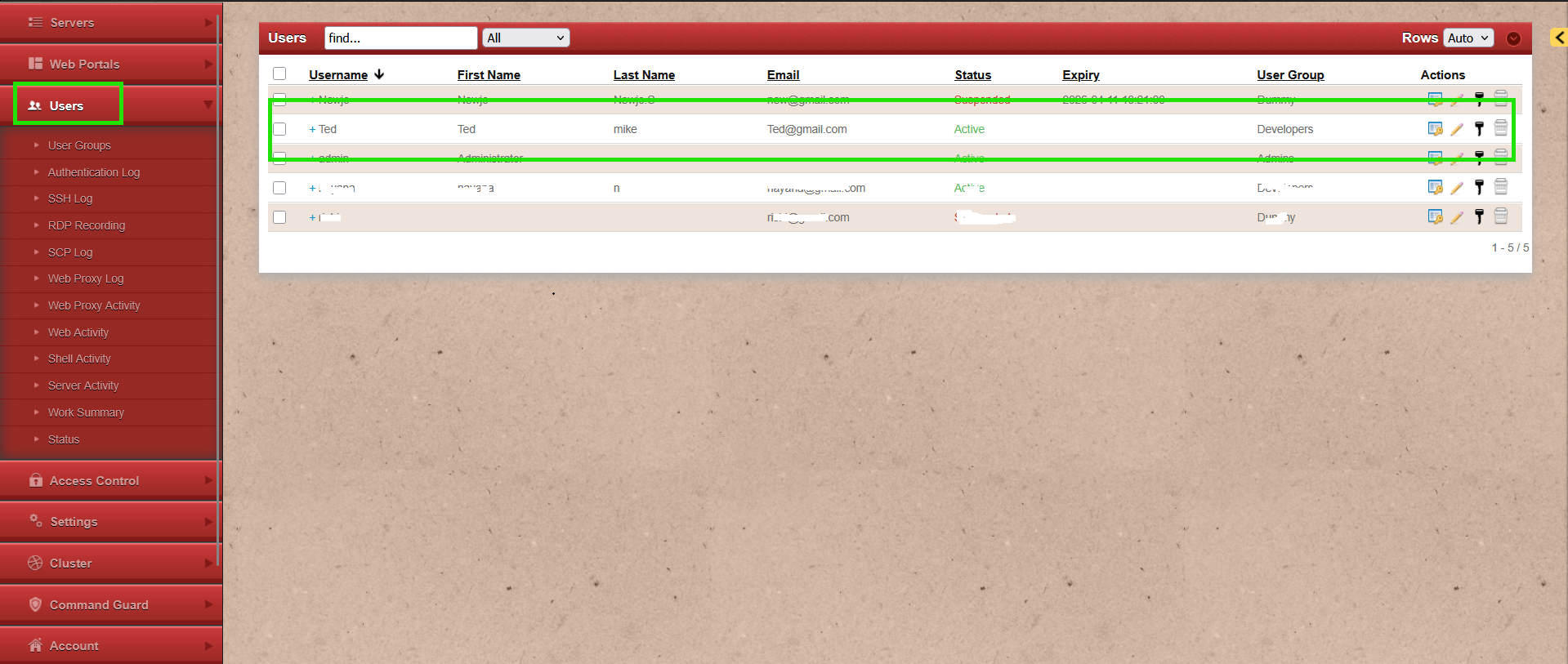
In the above screenshot, the user 'Ted' has been created and assigned to the 'Developers' group.
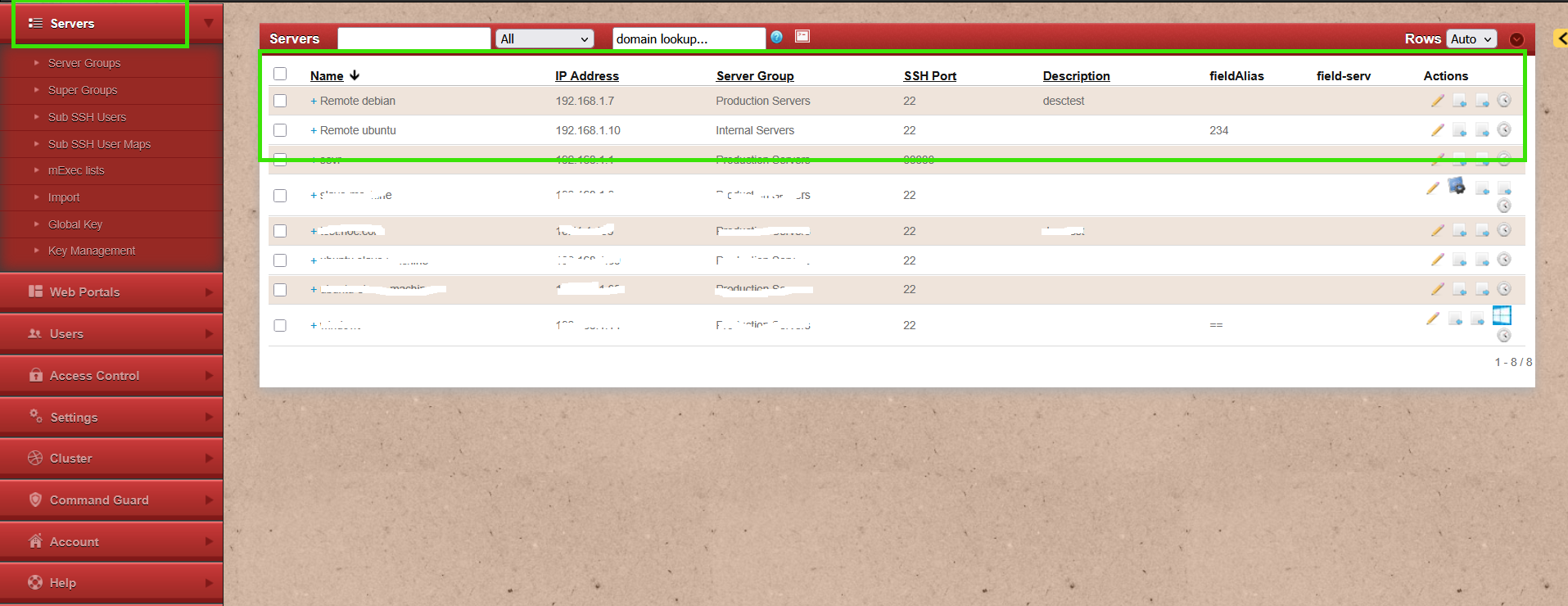
Step 2: Assign the servers to different server groups
Step 3: Add the SubSSH users.
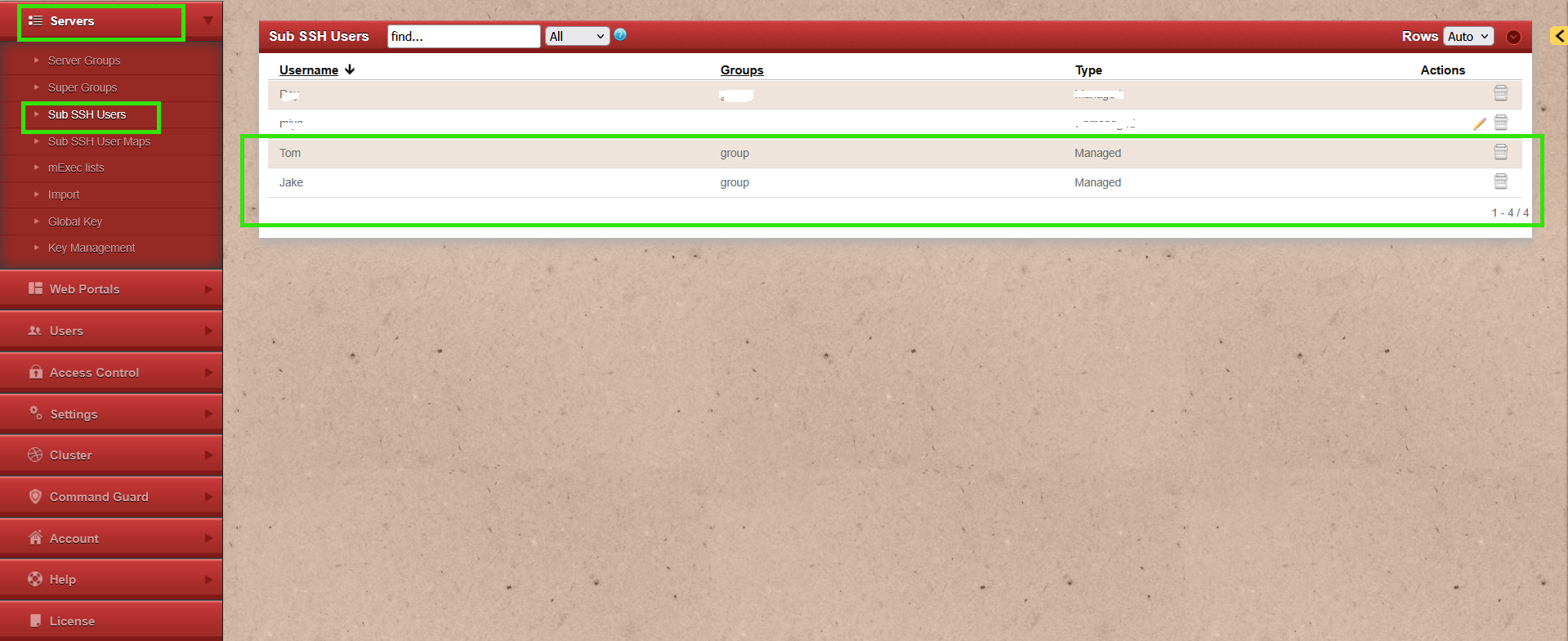
Here, two Sub-SSH users are added: 'Tom' and 'Jake'.
Step 4: Establish a mapping with SubSSH users between the user group created earlier and the server groups to which the remote servers belong.
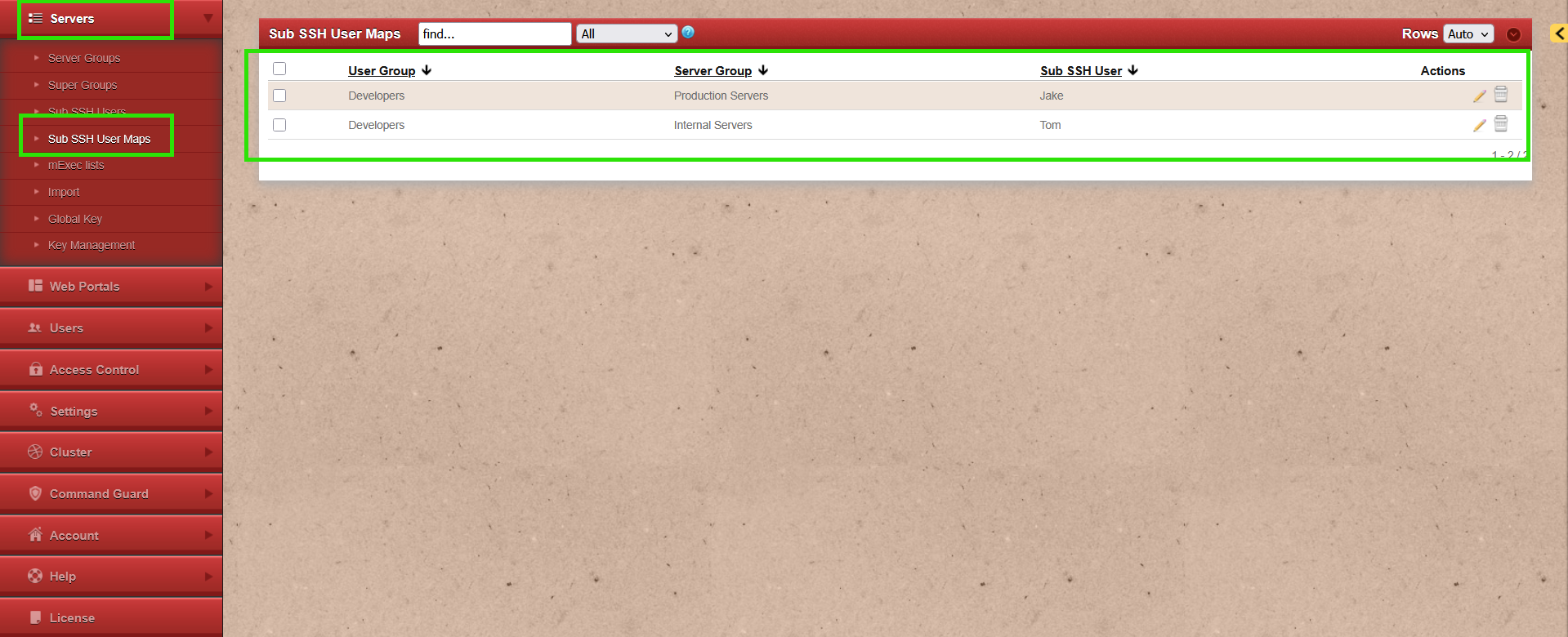
In the above screenshot, SubSSH user 'Tom' is mapped to the user group 'Developers' and server group 'Internal Servers'. SubSSH user 'Jake' is mapped to server group 'Production Servers' and user group 'Developers'.
A SubSSH user is a non-privileged system user created on remote servers, allowing gateway users to log in without using root credentials.
Step 5: Login through backend to check the mapping
root@gateway ~]# ssh user@Ezlogin_ip
Example: root@gateway ~]# ssh Ted@192.168.1.13
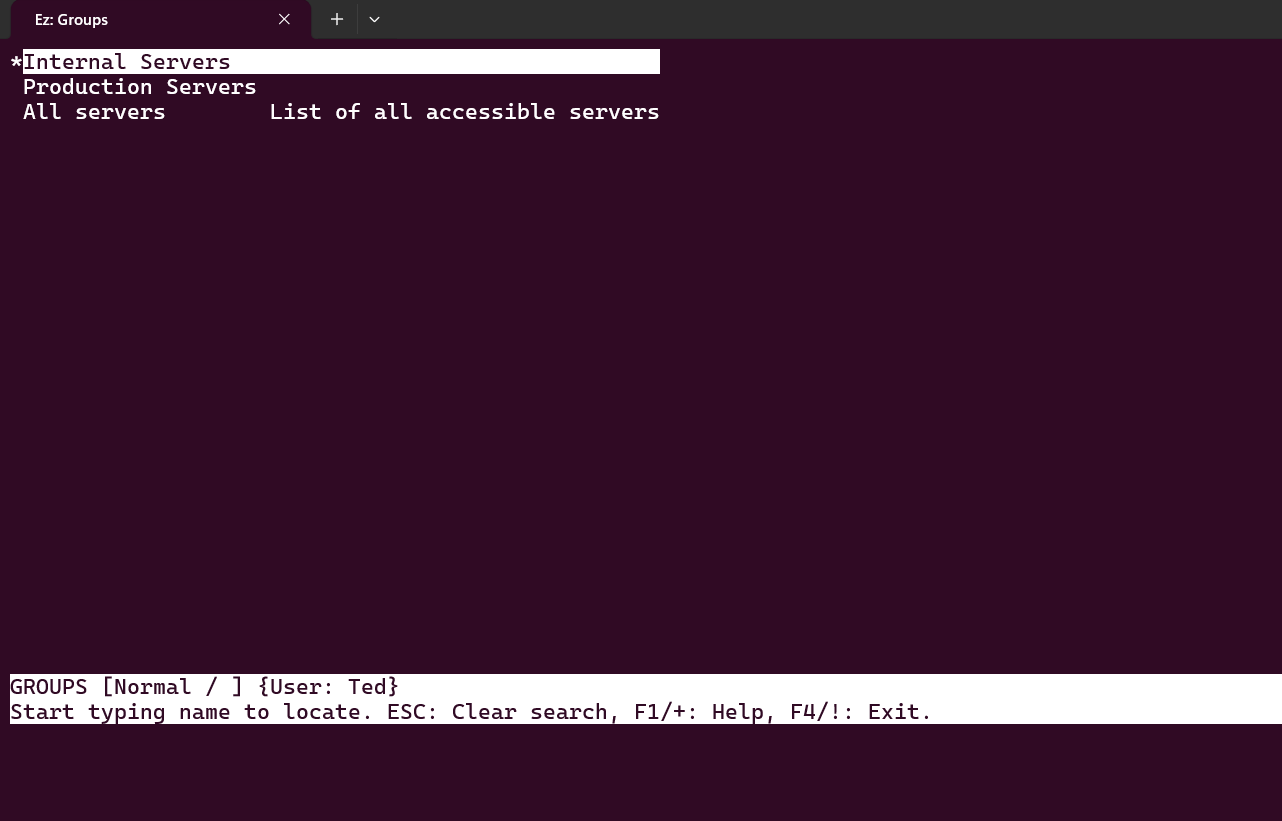
In the above screenshot, user 'Ted' logged into the backend, displaying the groups that are accessible to them.
Select the 'Internal Servers' server group option and confirm the user details by pressing the 'Tab' key.
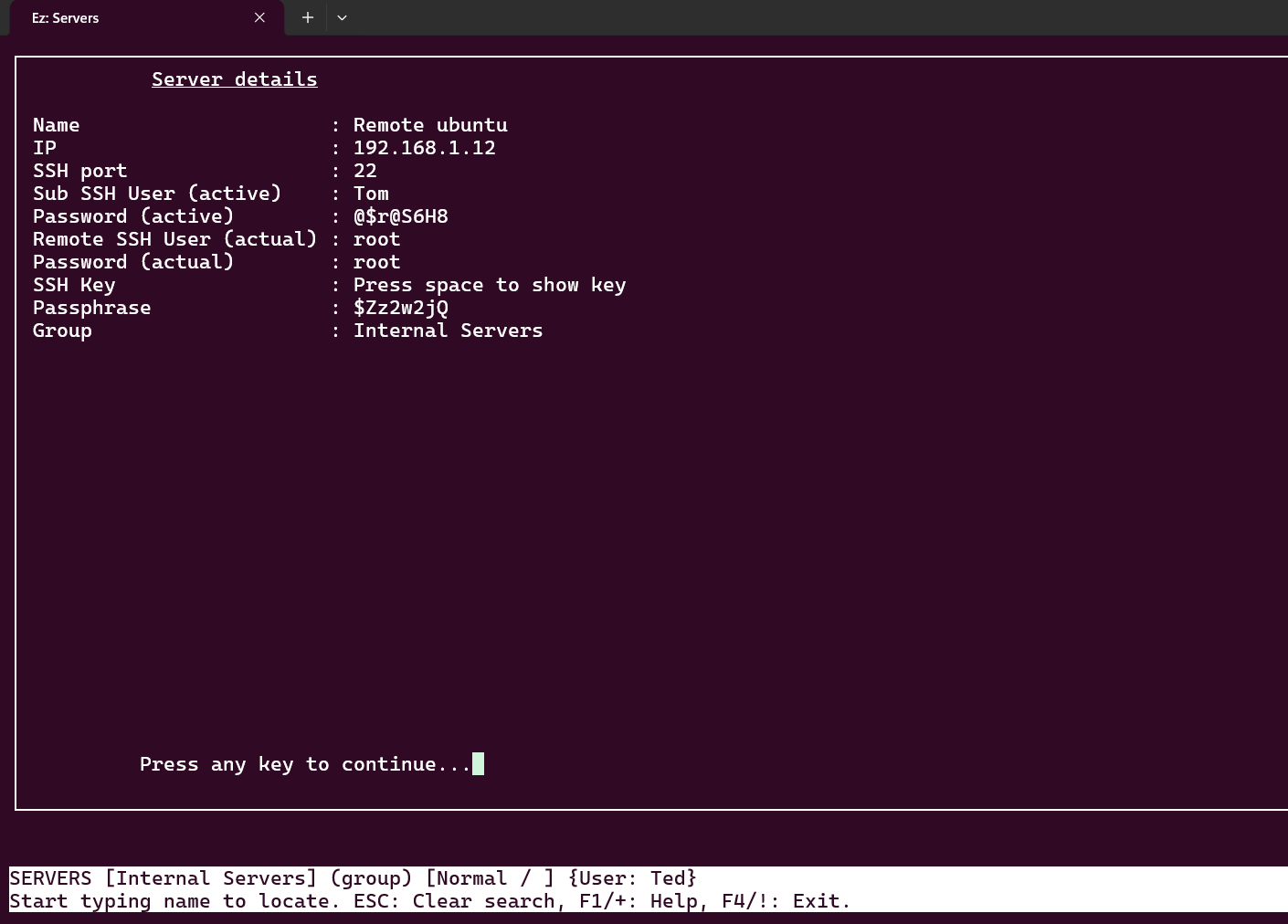
Logged in as the SubSSH user 'Tom' to the 'Remote ubuntu' server in the 'Internal Servers' server group.
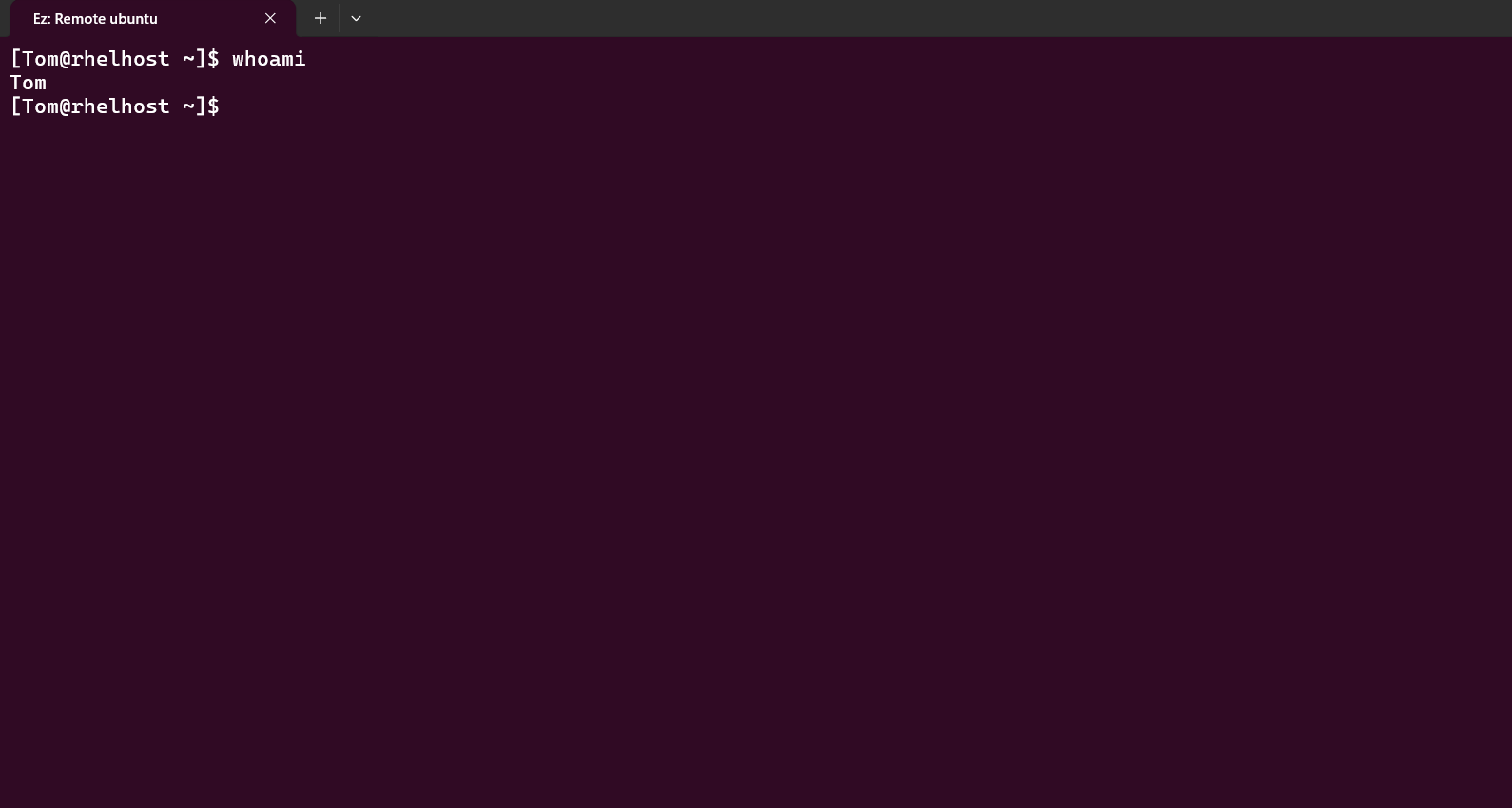
Select the 'Production Servers' server group option, and confirm the user details by pressing the 'Tab' key.
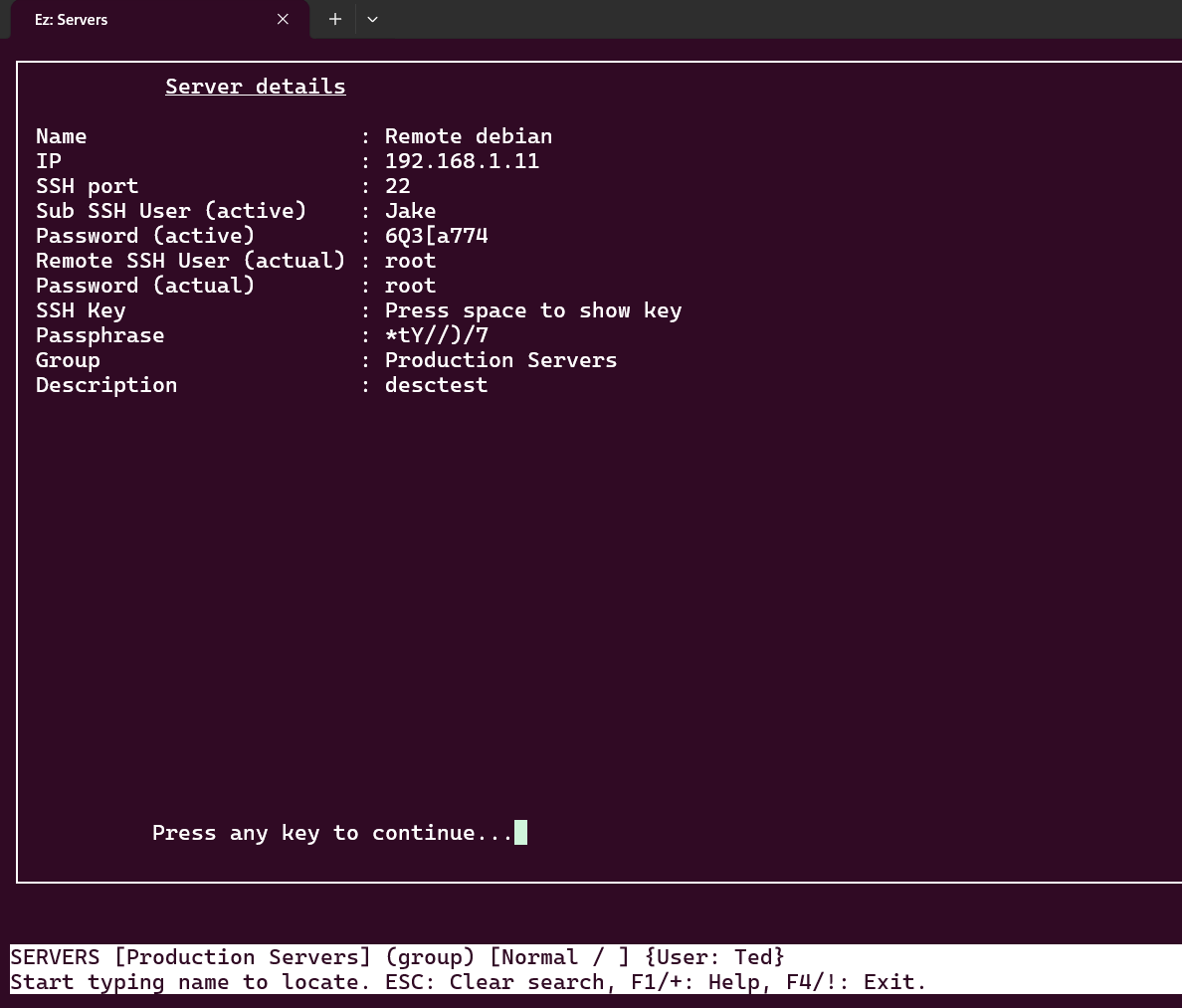
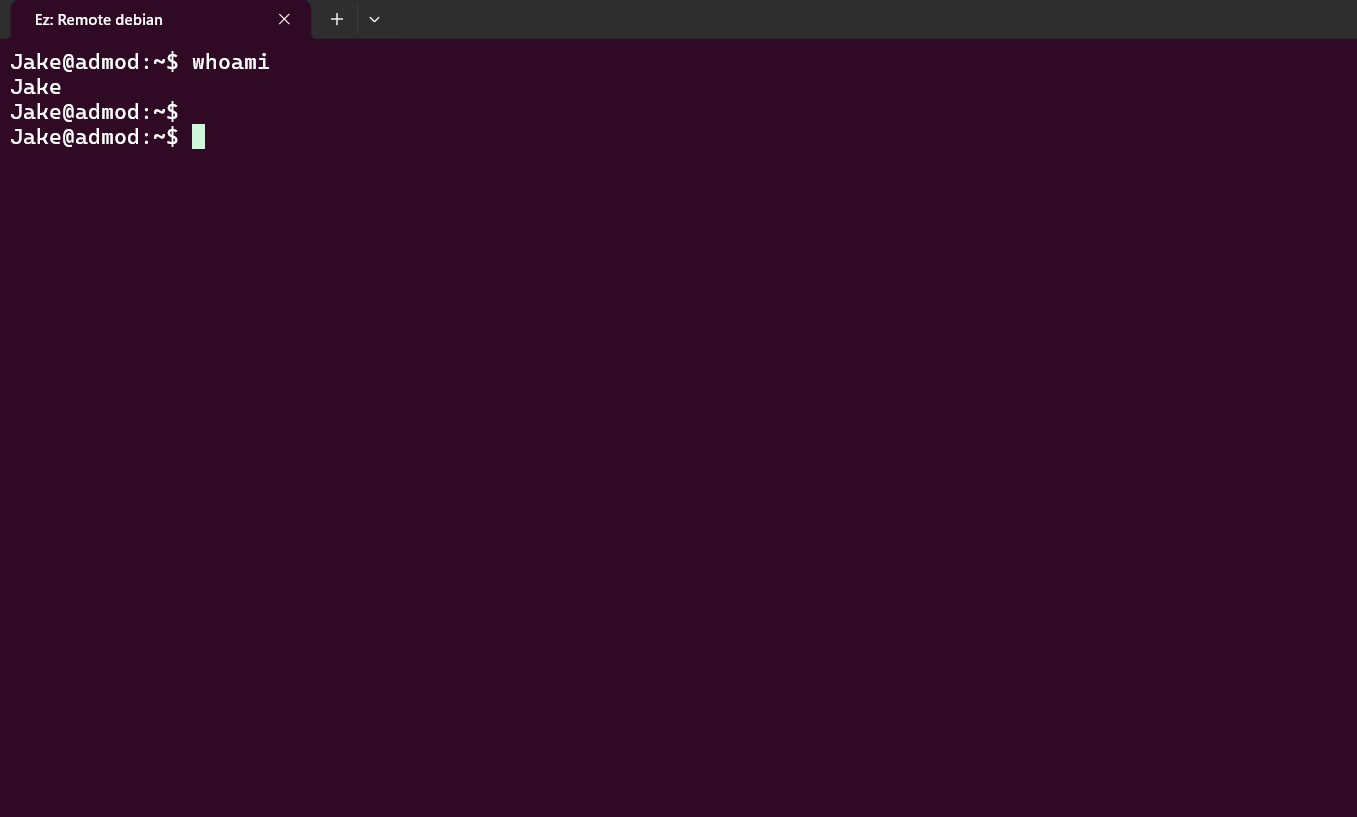
Logged in as the SubSSH user 'Jake' to the 'Remote debian' server in the 'Production Servers' server group.
Map the user group to which the gateway user belongs. Note that if a SubSSH user is mapped directly to an individual gateway user, that individual mapping takes priority — the group-level mapping will be ignored.
Creation of SubSSH user fails
If the Ezeelogin gateway server has more remote servers, it will take more time to create the SubSSH user in all the servers. Refer below article to increase the execution time of the script in the gateway server.
Related Articles:
Different types of Users in Ezeelogin
How to create sub ssh user through non-root user access