Bulk update server records in Ezeelogin using mass_change.php script
How to bulk update hostnames, IPs, and server Groups in Ezeelogin?
Overview: This article explains how to perform bulk updates of server hostnames, IP addresses, and server groups in Ezeelogin using a CSV file and the mass_change.php script. This script updates the hostname and IP address and also changes the server group for the updated servers. This method is useful when migrating datacenters, renaming servers, or updating IP addresses for multiple servers at once.
Step 1: Create a Complete Backup
Step 1(A): Create a complete backup of Ezeelogin installation before making any changes.
root@gateway:~# /usr/local/sbin/backup_ezlogin.php
Step 2: Create a New Server Group
Step 2(A): Log in to the Ezeelogin GUI, navigate to Server -> Server Group -> Add and create a new server group.
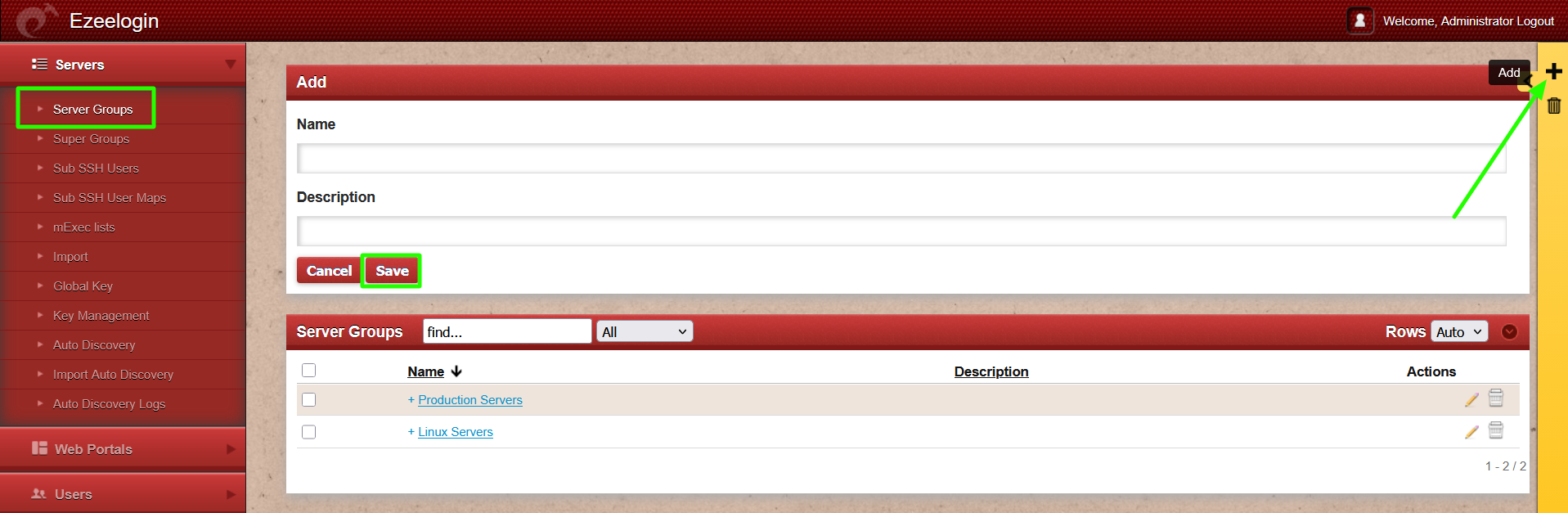
Step 3: Retrieve the Server Group ID
Step 3(A): After creating the server group, obtain its ID by running the following command on the gateway server:
root@gateway:~# mysql -u root -p -e "USE $(grep -oP ’db_name\s \K\S ’ /usr/local/etc/ezlogin/ez.conf); SELECT id,name from $(grep -oP ’db_prefix\s \K\S ’ /usr/local/etc/ezlogin/ez.conf)servergroups where name=’new_servergroup_name’;"
Example:
root@gateway:~# mysql -u root -p -e "USE $(grep -oP 'db_name\s+\K\S+' /usr/local/etc/ezlogin/ez.conf); SELECT id,name from $(grep -oP 'db_prefix\s+\K\S+' /usr/local/etc/ezlogin/ez.conf)servergroups where name='Dedicated Servers';"
Enter password:
+----+-------------------+
| id | name |
+----+-------------------+
| 6 | Dedicated Servers |
+----+-------------------+
In this example, the Server Group ID is 6.
Refer to the article How to Retrieve DB Credentials to find the database credentials and table prefix details.
Step 4: Prepare the CSV File
Step 4(A): Create a CSV file using the following format:
+--------------+--------------+--------------+------+
| old_hostname | new_hostname | current_ip | new_ip |
+--------------+--------------+--------------+------+
Example:
+-------------------+------------------+------------+--------------+
| old_hostname | new_hostname | current_ip | new_ip |
+-------------------+------------------+------------+--------------+
| db-prod-01 | db.eznoc.com | 10.0.0.10 | 192.168.1.10 |
| backup-prod-01 | backup.eznoc.com | 10.0.0.11 | 192.168.1.11 |
| web-prod-01 | web.eznoc.com | 10.0.0.12 | 192.168.1.12 |
+-------------------+------------------+------------+--------------+
Step 5: Upload the CSV File and Script
Step 5(A): Contact the Ezeelogin Support team to request the mass_change script.
Step 5(B): Download the mass_change.zip file and upload it to the Ezeelogin gateway server. Also upload the CSV file that was created in Step 4.
root@gateway:~# ls
mass_change.zip 'serverlist(Sheet1).csv'
Step 5(C): Extract the ZIP file using the following command:
root@gateway:~# unzip mass_change.zip
mass_change.zip 'serverlist(Sheet1).csv' mass_change.php
Step 6: Run the mass_change script
Step 6(A): Execute the command below to retrieve the database credentials like database host, database name, database username, database user password, and database table prefix:
root@gateway:~# php /usr/local/ezlogin/eztool.php -show_db_credentials
Step 6(B): After retrieving the required database information, run the following command to update the server details. The script prompts for the password of the specified database user before performing the updates.
root@gateway:~# php mass_change.php </path/to/file.csv> <db_host> <db_name> <db_prefix> <db_user> <new_servergroup_id>
Replace the placeholders with the appropriate values:
<csv_file_path> — Full path to the CSV file (Example: /home/serverlist.csv)
<db_host> — Database host (Example: localhost)
<db_name> — Database name (Refer to the article How to Retrieve DB Credentials)
<db_prefix> — Database table prefix (Example: hkz_) (Refer to the article How to Retrieve DB Credentials)
<db_user> — Database username (Refer to the article How to Retrieve DB Credentials)
<servergroup_id> — Server Group ID obtained in Step 3
For example:
root@gateway:~# php mass_change.php serverlist\(Sheet1\).csv 127.0.0.1 ezlogin_fybobu evxnk_ ezlogin_xerv 6
PHP Warning: Undefined array key 7 in /root/mass_change.php on line 9
MySQL password: ***********
Update server old_hostname to new_hostname (current_ip -> new_ip)
Server not found: old_hostname
Update server db-prod-01 to db.eznoc.com (10.0.0.10 -> 192.168.1.10)
Update server backup-prod-01 to backup.eznoc.com (10.0.0.11 -> 192.168.1.11)
Update server web-prod-01 to web.eznoc.com (10.0.0.12 -> 192.168.1.12)
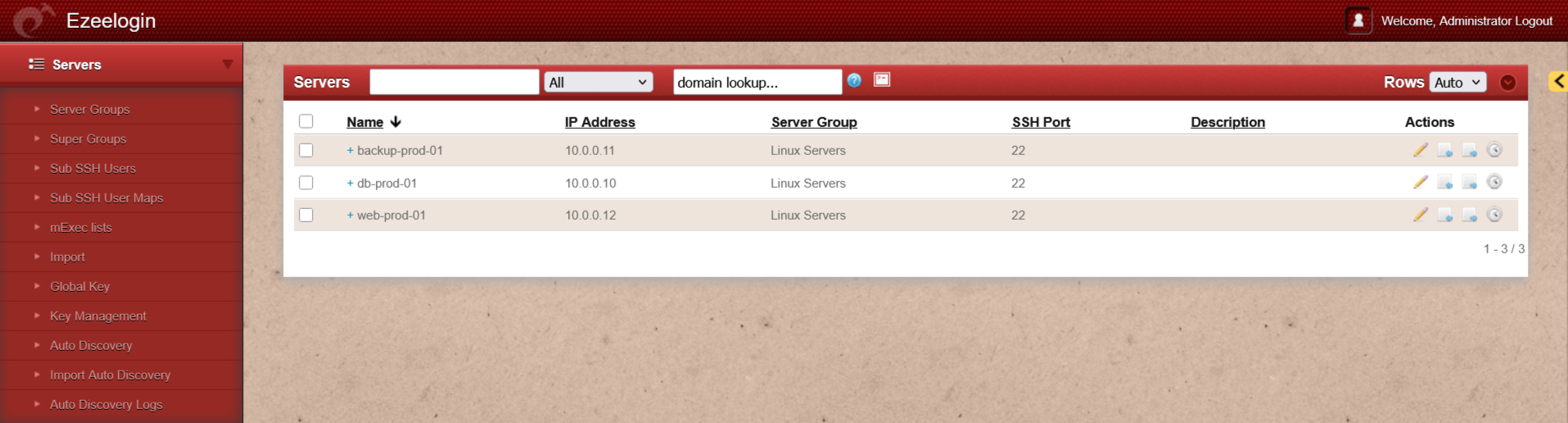
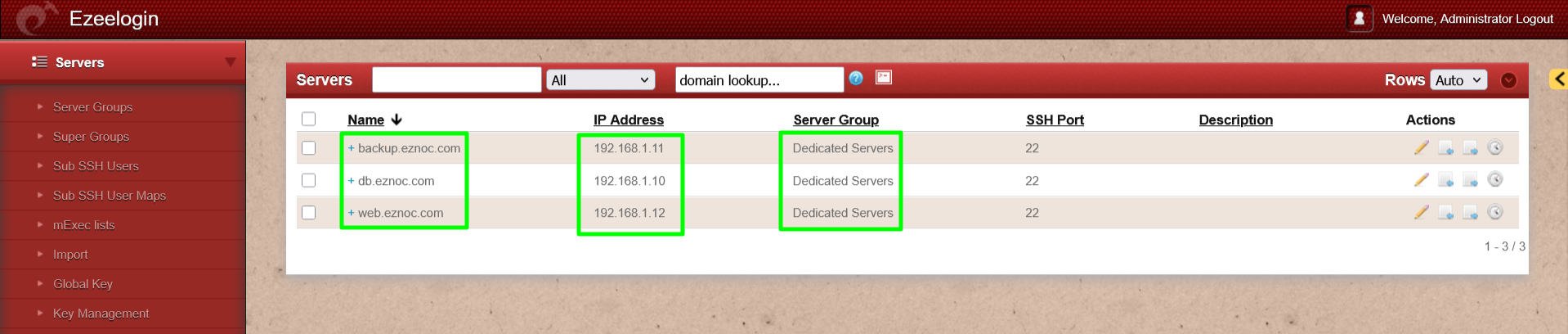
Step 6(C): After the script completes successfully login to the Ezeelogin UI and verify that the server details have been updated correctly.
Before running mass_change.php script:
After running mass_change.php script:
Related Articles: