Control and manage servers and users using API
Ezeelogin API Setup & Usage Guide : Manage Servers & Users
Overview: This guide provides step-by-step instructions on how to configure and control Ezeelogin API functions such as User Update API, Access Control API, Password Reset API, Server API, and Server Group Control API in Ezeelogin.
Configuring Web and CLI Based API Calls:
Setup API in Ezeelogin
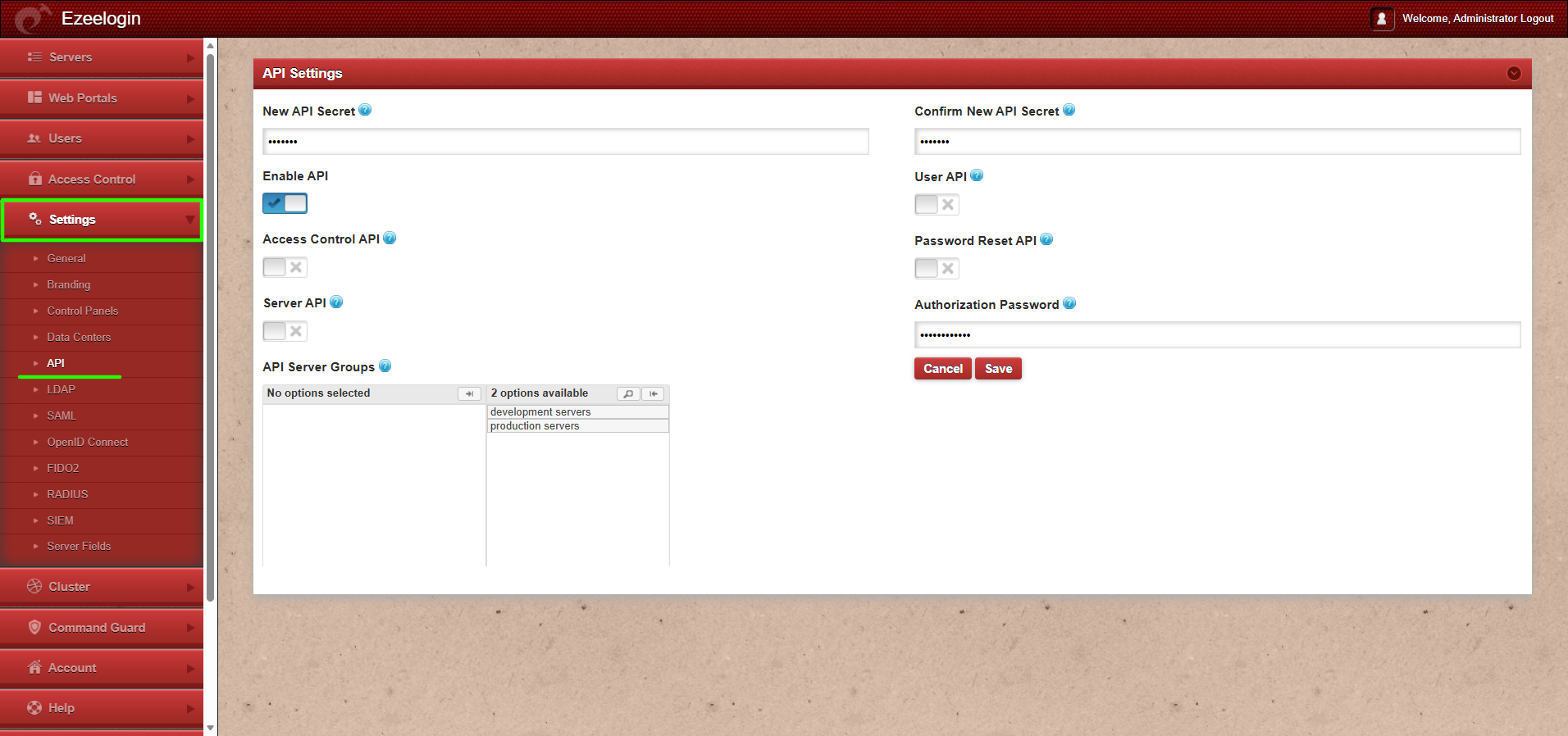
Log in to the Ezeelogin GUI and navigate to Settings -> API. Enter the new API secret, confirm new API secret, and enable/disable the API option to allow or block the API scripts from working. Save the changes using the authorization password (password of the currently logged-in user).
php /usr/local/ezlogin/ezwapi.php -help
Usage:
ezwapi.php -help <action>
action : API action (list_servers/add_server/update_server/remove_server/reset_fingerprint/get_password/setup_sshusers/add_user_server_acl/suspend_user/unsuspend_user/force_user_password_change/reset_user_password/reset_user_2fa/set_user_expiry)
| list_servers | List servers added in Ezeelogin |
| add_server | Add new server |
| update_server | Update existing server |
| remove_server | Delete existing server |
| reset_fingerprint | Clear fingerprint of remote server from Ezeelogin database |
| get_password | Show password of remote server |
| setup_sshusers | Create managed subssh user to one or more remote server |
| add_user_server_acl | Grants permission for a gateway user to access a remote server |
| suspend_user | Suspend gateway user |
| unsuspend_user | Unsuspend gateway user |
| force_user_password_change | Force gateway user to change password on next login |
| reset_user_password | Reset gateway users password with temporary password generated while running the script |
| reset_user_2fa | Clear 2FA secrets saved in Ezeelogin database |
| set_user_expiry | Set expiry for gateway users. After the expiry date is reached, the user will be suspended. |
1. User API
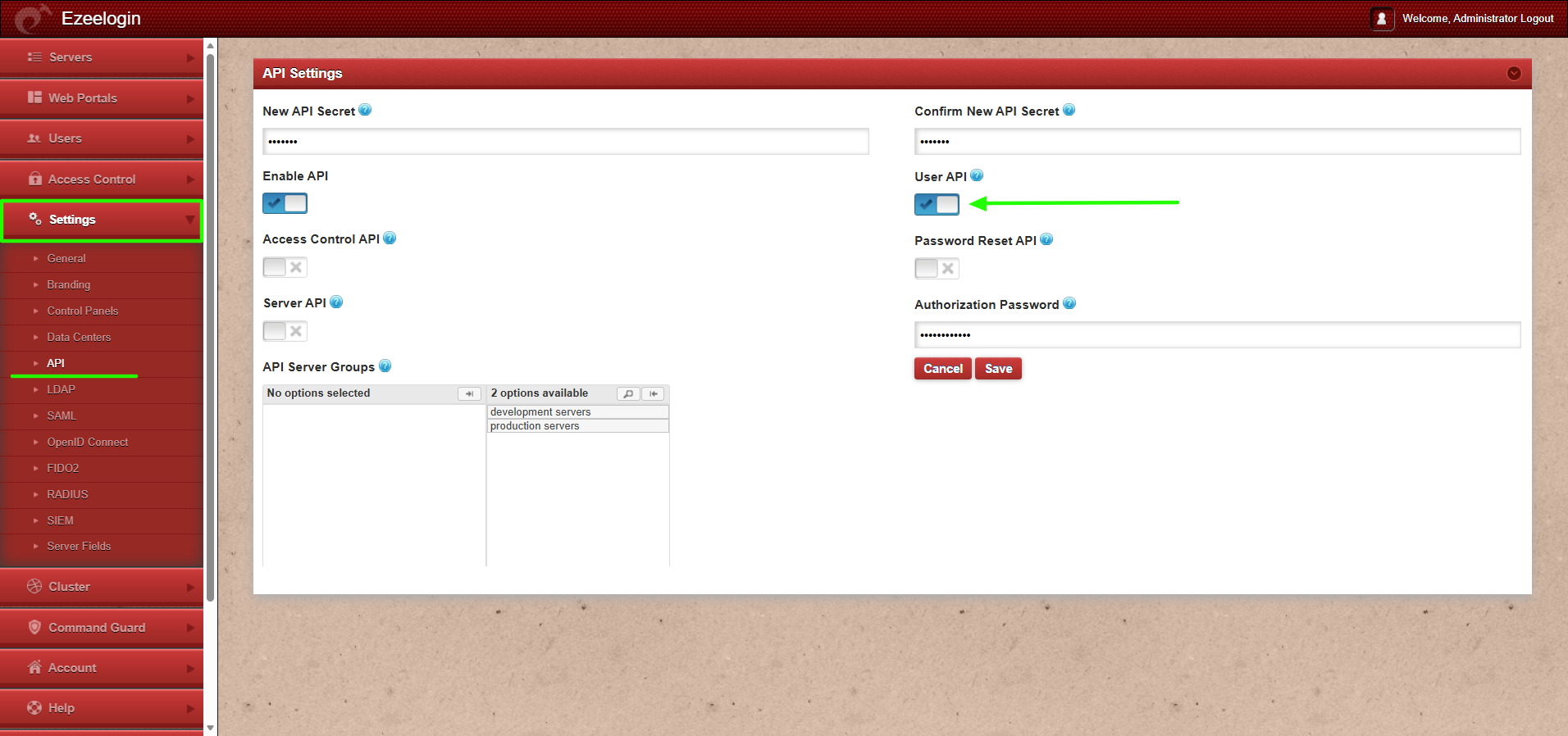
Log in to the Ezeelogin GUI and navigate to Settings -> API -> Enable/Disable User API to enable or disable user update function with API script.
How to execute the API script for the user update function?
Log in to the server where you have the ezwapi.php script.
Example of User API:
php /usr/local/ezlogin/ezwapi.php suspend_user -api_url http://gateway.server.com -secret 12345 -user tony
200: {"status":"success","data":"Success"}
2. Access Control API
The Access Control API Control allows the admin user to manage the following function using API scripts:
* Add User-Server Access Control – Grants permission for a gateway user to access a remote server.
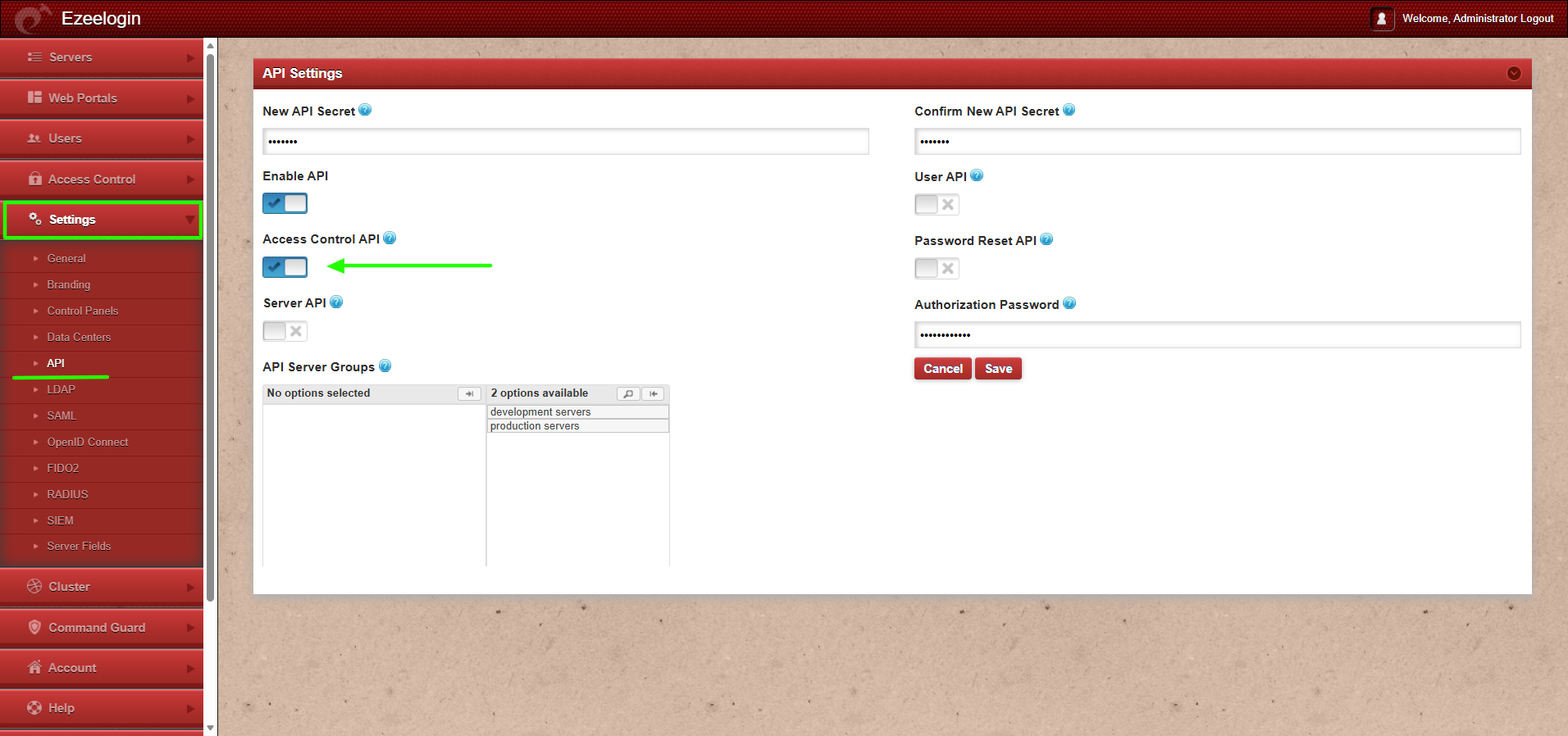
Log in to the Ezeelogin GUI and navigate to Settings -> API -> Enable/Disable Access Control API to enable or disable access control update function with API script.
How to execute the API script for the access control function?
Log in to the server where you have the ezwapi.php script.
Example of Access Control API:
php /usr/local/ezlogin/ezwapi.php add_user_server_acl -api_url http://gateway.server.com -secret 12345 -user tony -server database.serv
er
200: {"status":"success","data":"Saved","extra":{"25":{"3":1}}}
3. Password Reset API
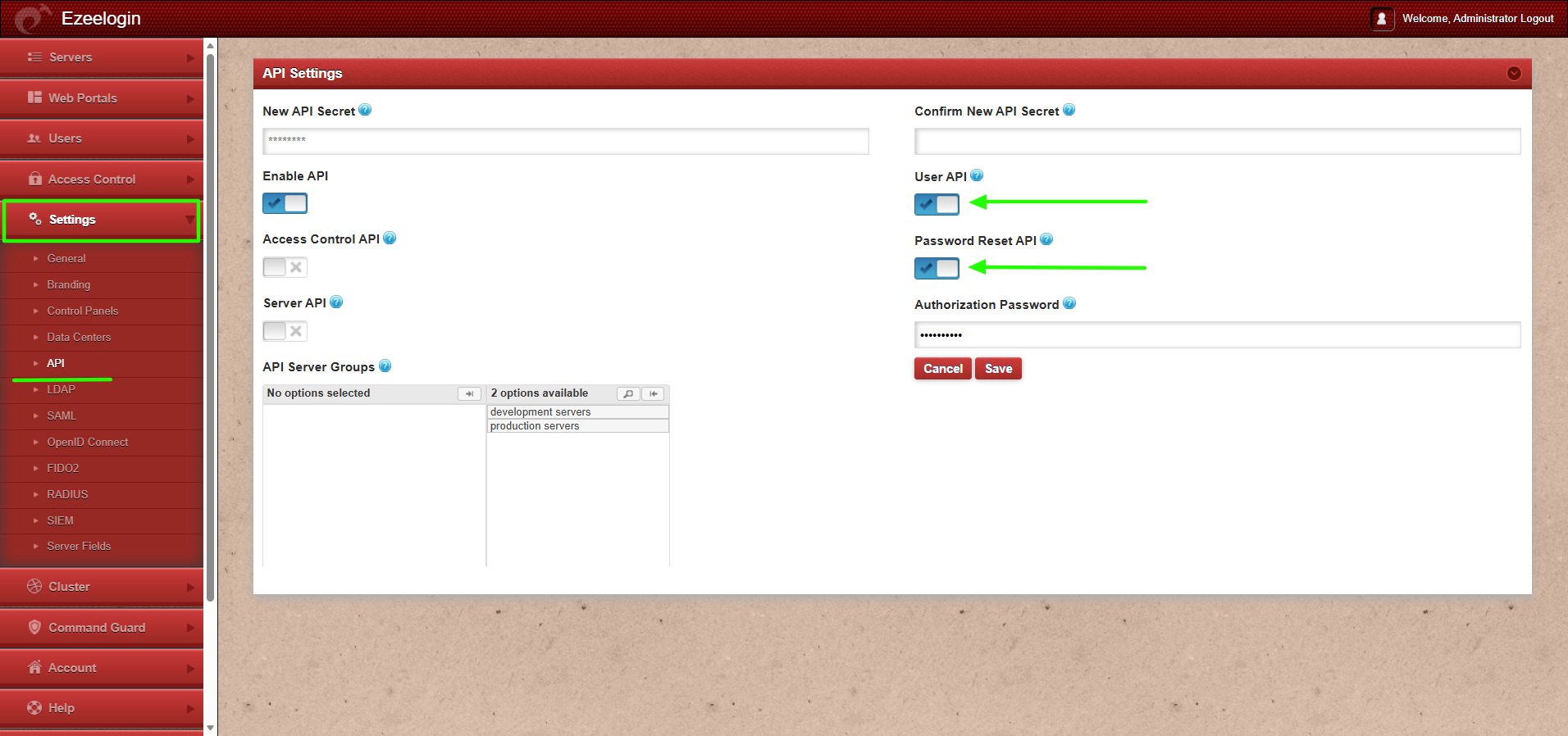
Log in to the Ezeelogin GUI and navigate to Settings -> API -> Enable/Disable User API and Password Reset API to enable or disable password reset function with API script.
How to execute the API script for the access control function?
Log in to the server where you have the ezwapi.php script.
Example of Password Reset API:
php /usr/local/ezlogin/ezwapi.php reset_user_password -api_url http://gateway.server.com -secret 12345 -user tony
200: {"status":"success","data":"8rV2N5EGU9"}
4. Server API
Log in to the Ezeelogin GUI and navigate to Settings -> API -> Enable/Disable Server API to enable or disable server update function with API script.
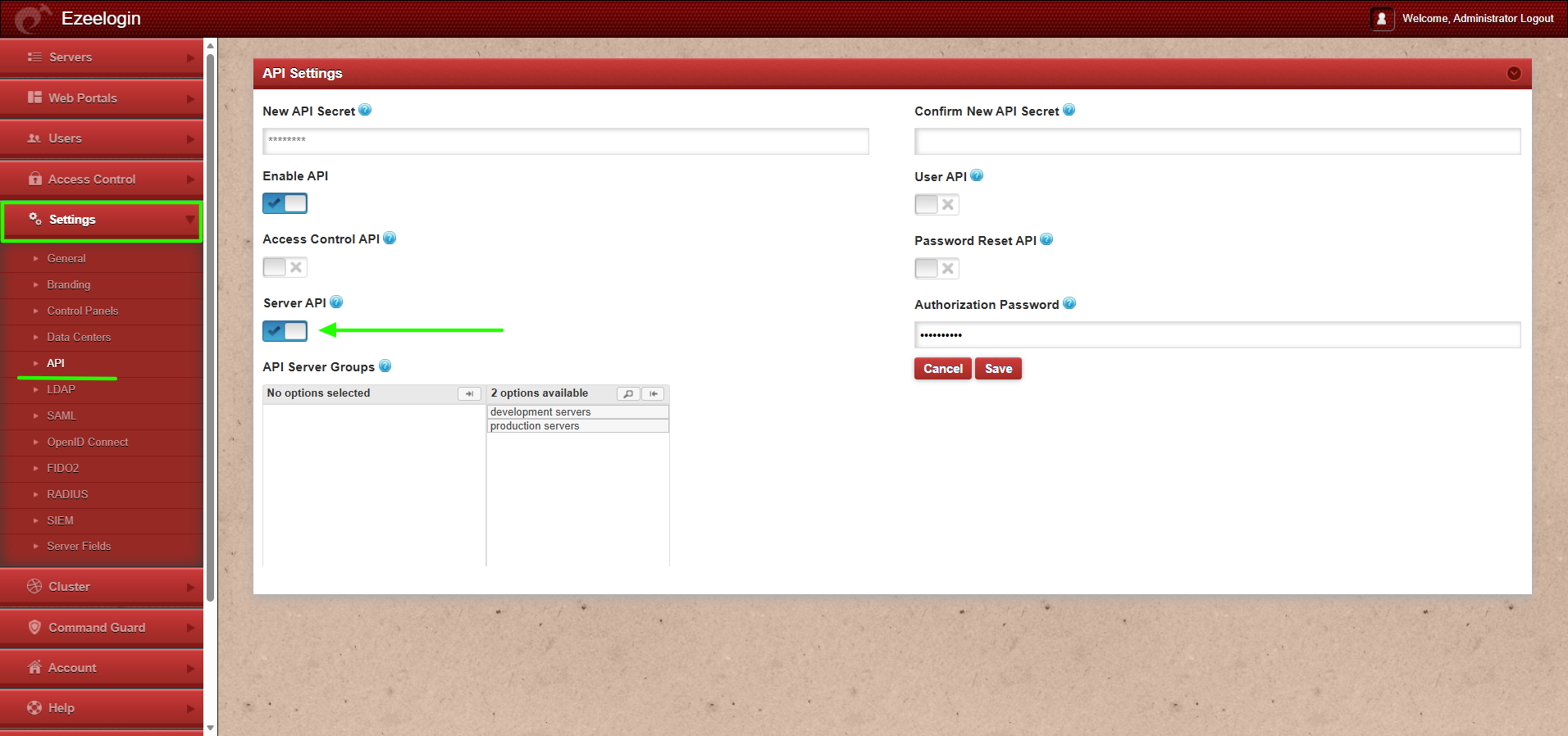
How to execute the API script for the server update functions?
Log in to the server where you have the ezwapi.php script.
Example of Server API:
php /usr/local/ezlogin/ezwapi.php list_servers -api_url http://gateway.server.com -secret 12345
200: {"status":"success","extra":[{"id":"3","name":"database.server"}]}
5. API Server Group
The API Server Group Control allows the admin user to control which server groups can be managed using API scripts.
Functions available through API Server Group Control:
* Allow specific server groups to be updated using API scripts (all servers within the allowed server groups can be managed using API scripts)
Log in to the Ezeelogin GUI and navigate to Settings -> API. Select the server groups that need to be allowed (server groups in the left table are allowed, and server groups in the right table are disallowed).
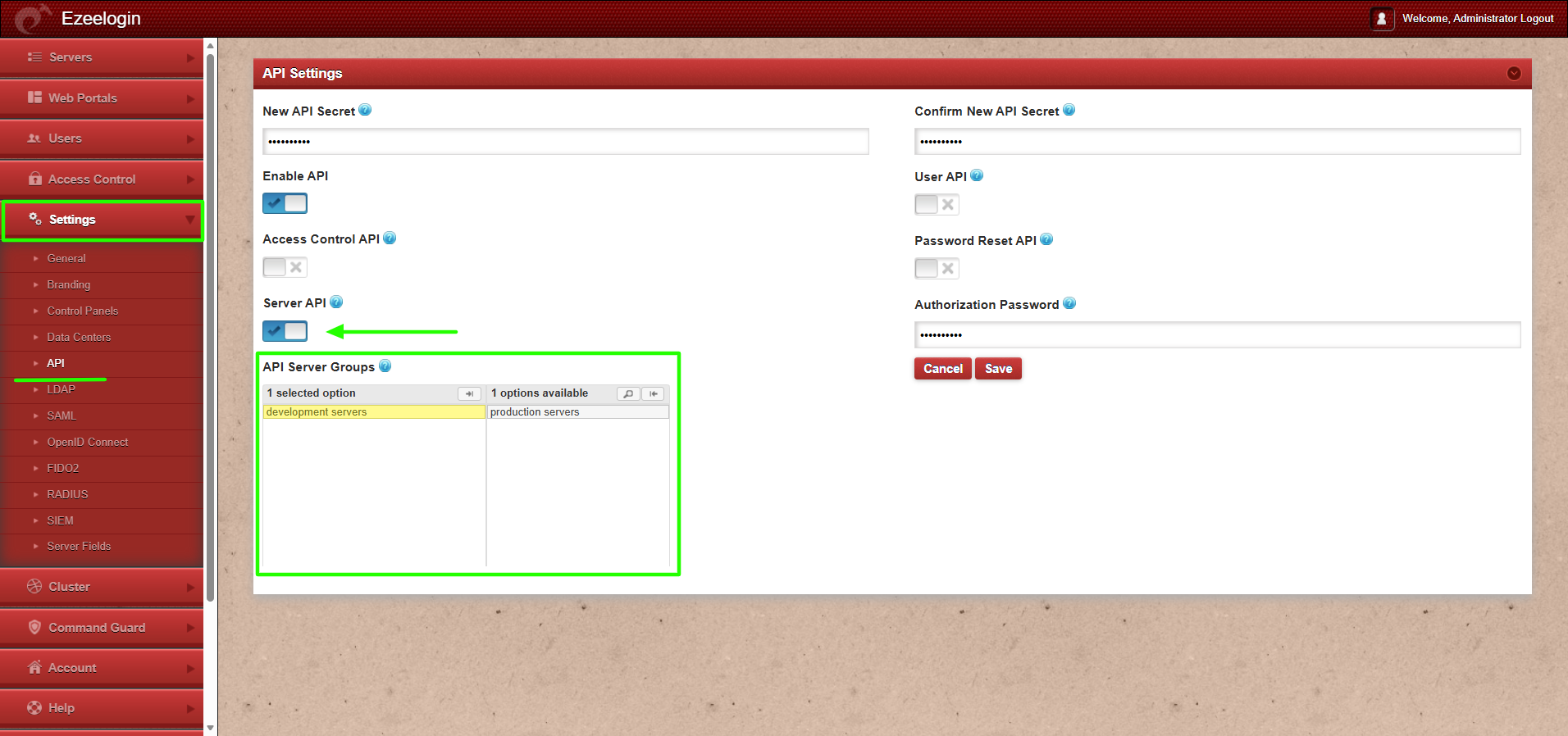
How to execute the API script for the server group functions?
Log in to the server where you have the ezwapi.php script.
Example of API Server Groups:
php /usr/local/ezlogin/ezwapi.php update_server -api_url http://gateway.server.com -secret 12345 -name database.server -group 'production servers' -ssh_port 22 -description db_server
200: {"status":"success","data":"Saved"}
This feature is available from Ezeelogin version 7.46.0. Refer article to upgrade Ezeelogin to the latest version.
Related Articles:
Add / update / delete servers through ezeelogin API
Managing users in Ezeelogin via API