Cluster Explained
How Ezeelogin cluster (master-slave) works — SSH gateway high availability explained
Overview: This article explains how Ezeelogin’s master-slave cluster operates to provide high availability. You’ll learn how the nodes communicate, handle failovers, and maintain seamless access, ensuring your systems remain reliable even if one node goes down. Whether you’re setting up a new cluster or managing an existing one, this guide will help you understand the key concepts and processes behind Ezeelogin’s clustering system.
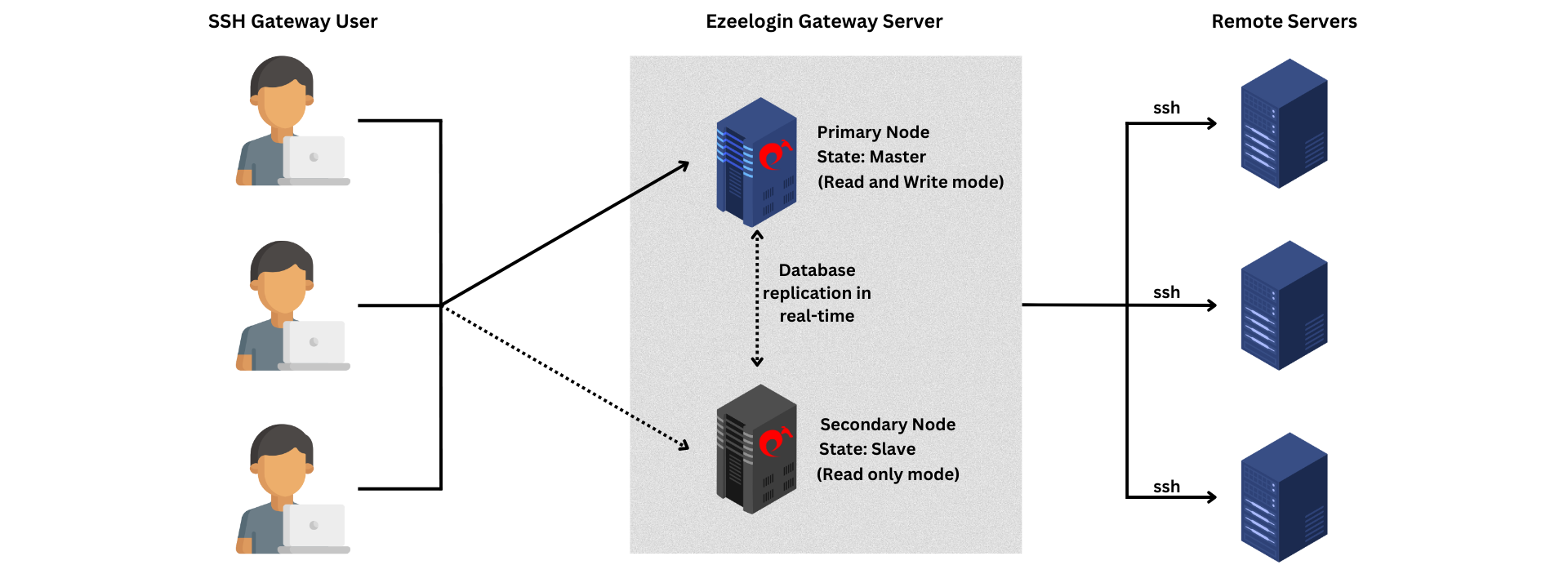
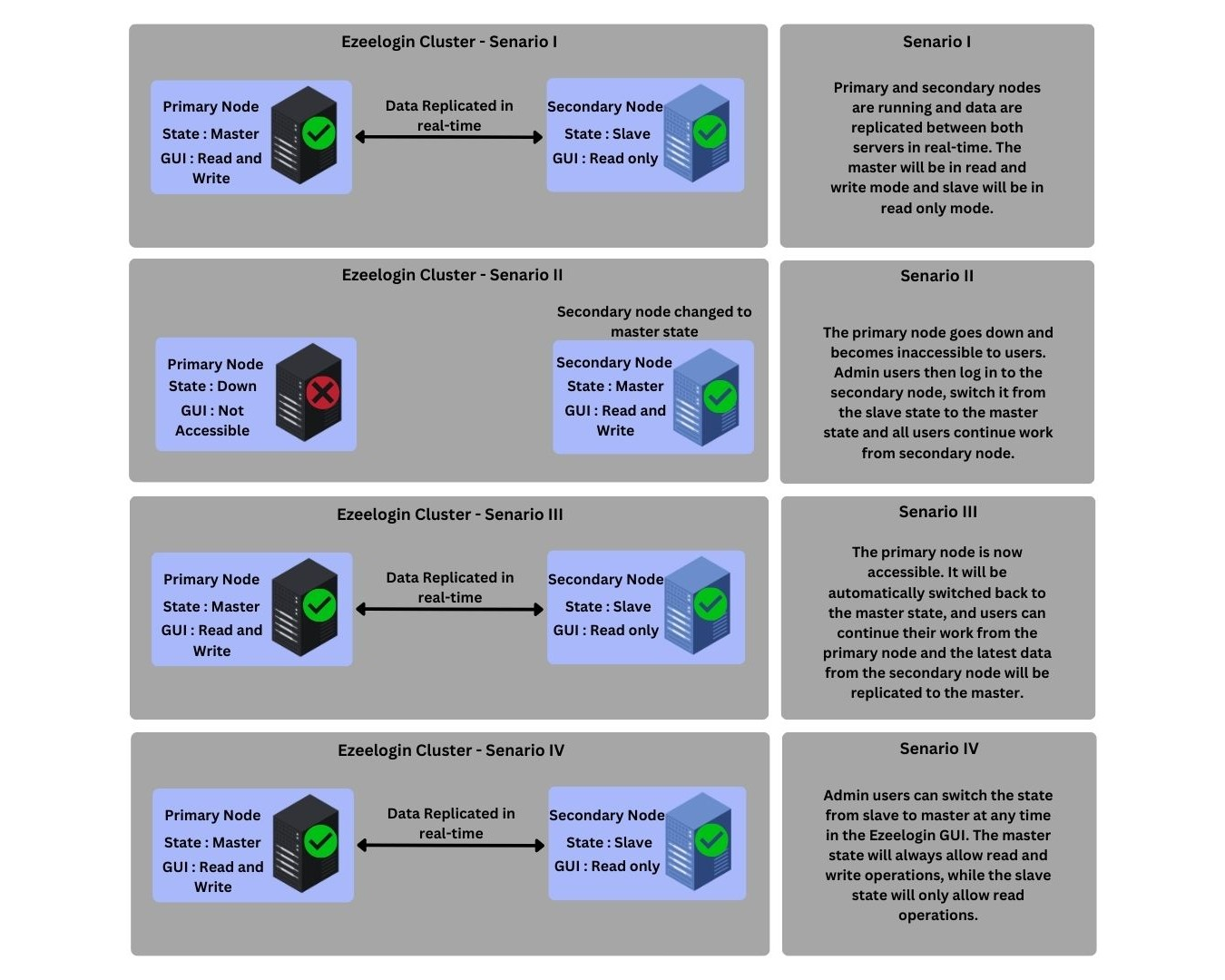
The master-slave setup is for High Availability (HA). Data between the master and slave is replicated in real-time. If the primary node goes down, admin privileged user can switch the secondary node to the master state and all users can continue to work from the secondary node. The node with the master state will handle read and write operations, while the node with the slave state will only handle read operations. When the primary node becomes accessible, Ezeelogin will automatically switch back to the master state in the primary node and data will be replicated from the secondary node. Admin privileged users can switch the state from slave to master at any time in the Ezeelogin GUI. The master state will always allow read and write operations, while the slave state will only allow read operations. The state will be changed according to the admin user's preference, but node states will remain unchanged throughout their lifetime.
Ezeelogin Cluster -Scenario II
If the primary node goes down and becomes inaccessible, administrators access the secondary node, promote it from the slave state to the master state, and users continue working through the secondary node.
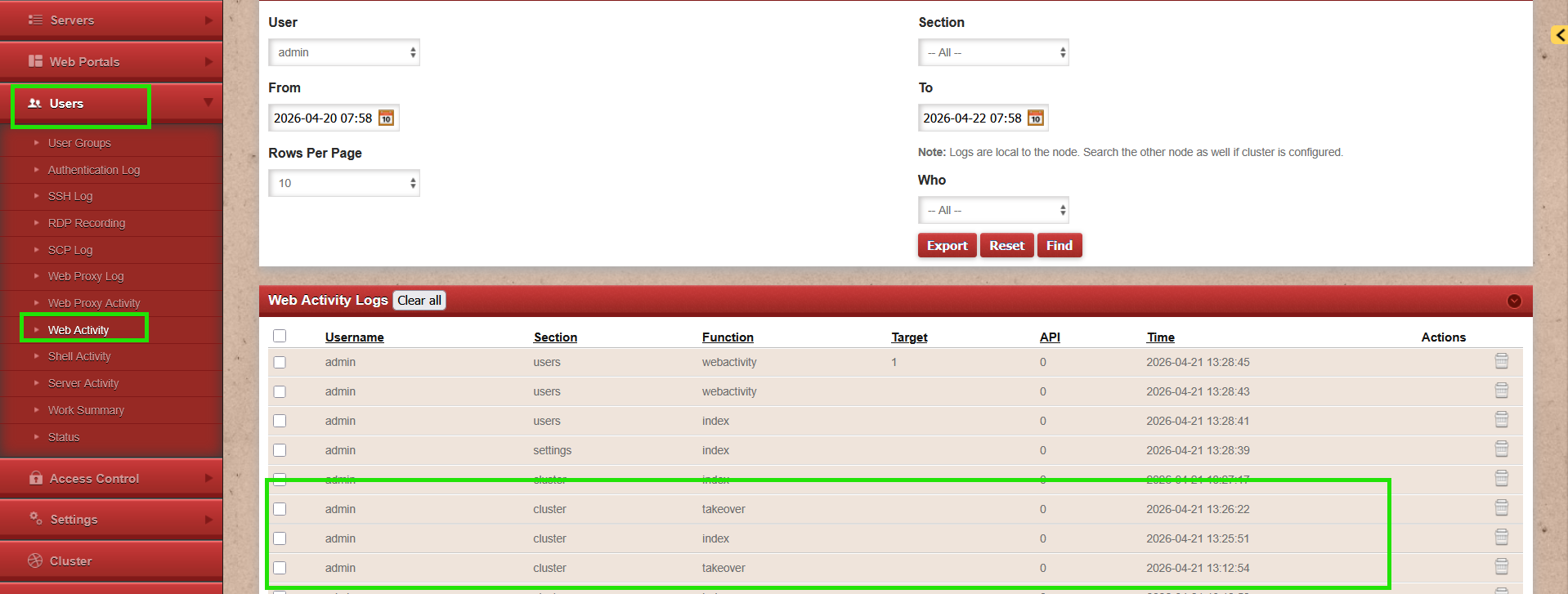
The screenshot below shows the logs generated when clicking Make Master on the secondary node.

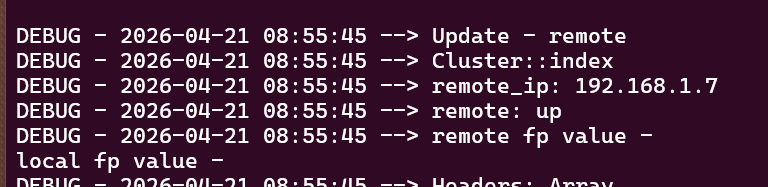
The following logs are displayed after clicking Make Master on the secondary node and refreshing the secondary node GUI. In this example, the remote_ip 192.168.1.7 represents the primary node ip.

The logs can be viewed under Users → Web Activity on the secondary node GUI.
Ezeelogin Cluster - Scenario III
Once the primary node is accessible again, it is automatically restored to the master state, and users can continue working from the primary node.
When the primary node becomes available again, the following application logs are recorded on the secondary node. In these logs, the remote_ip 192.168.1.7 represents the primary node’s IP address.
Ezeelogin Cluster - Scenario IV
In the Ezeelogin GUI, admin can manually change a node’s role from slave to master at any time. The master state allows both read and write operations, while the slave state is limited to read-only operations.
Here are the application logs recorded during a manual node state change from secondary node. In these logs, the remote_ip 192.168.1.7 represents the primary node’s IP address and other_remote_ip 192.168.1.8 represents the secondary node ip.
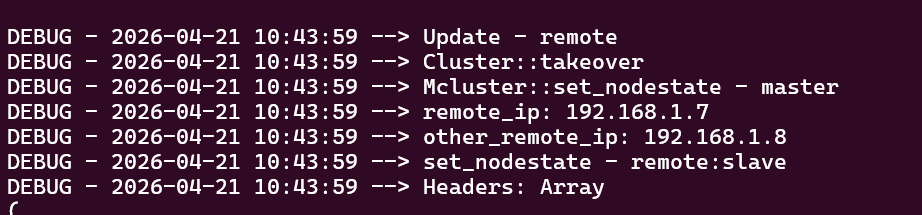
The logs can be viewed under Users → Web Activity on the secondary node GUI.
Following screenshot shows the manuel node state change from primary node. In these logs, the remote_ip 192.168.1.8 represents the secondary node’s IP address and other_remote_ip 192.168.1.7 represents the primary node ip.
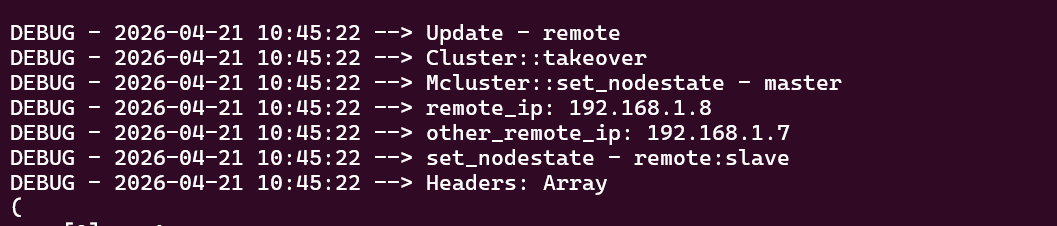
View Cluster logs / Node State (Master/Slave) Change Logs in the GUI
Cluster logs provide details about when the node state changes and the reason for switching between the master and slave states.
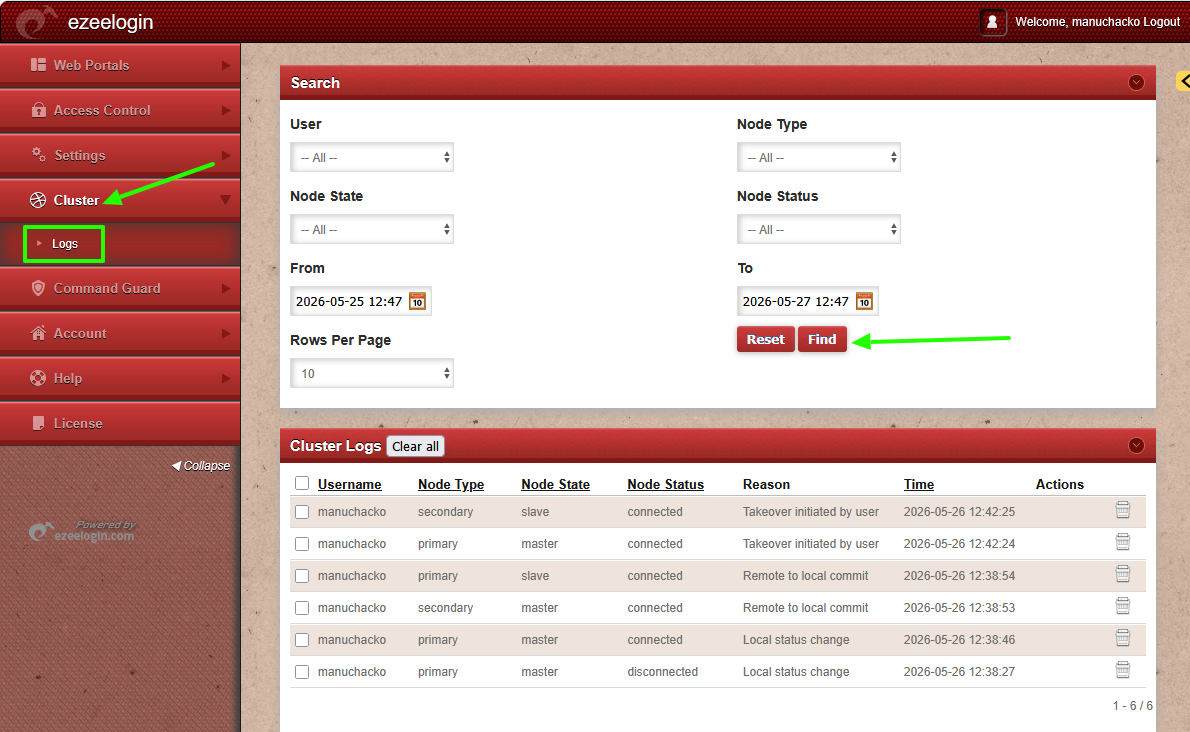
In the above sceenshot the reason “takeover initiated by user” indicates that a user manually changed the secondary node from the slave state to the master state. A “remote to local commit” can occur during server disconnect and reconnect events, typically when the master and slave nodes resynchronize after connectivity is restored.
FAQ:
1. Why does it switch to another state?
This typically occurs when the primary node becomes unavailable or when there are synchronization or network-related issues between the nodes. If the nodes are unable to communicate with each other, the system may trigger a failover to ensure continued availability.
Common causes include:
> primary node(master state) going down
> Network connectivity issues between nodes
> Synchronization failures
> Scheduled server or network maintenance activities
Such events can temporarily disrupt communication between nodes, causing the system to switch roles as part of its failover mechanism.
2. Can we disable the secondary server (slave ) since we are currently using only the primary node (master)?
Certainly, the choice to disable the secondary server ( disconnect slave ) is yours, but keep a note that data synchronization between the primary node and secondary node (master - slave) will not occur if the slave is disabled. It is recommended to keep both servers running and synchronized for real-time data updates, as changes made to the primary server (master) will automatically sync with the secondary server (slave state).