Enable MFA for Remote Server and Network Device Access
How to configure Two-Factor Authentication (2FA / MFA) for remote server access and network devices, including routers and switches.
Overview: Ezeelogin provides an additional layer of security by requiring users to complete two-factor authentication (2FA) before accessing remote servers and network devices. With this step-up MFA, engineers must verify their identity when connecting to protected devices such as switches, routers, and firewalls, even when those devices cannot run a PAM agent.
This approach requires no agents, firmware modifications, or changes to the network devices. The Ezsh 2FA Interval setting controls how long a successful verification remains valid before users must authenticate again when accessing remote devices through the Ezeelogin shell (ezsh). This uses the same two factor authentication method that is configured for the initial ezsh login.
This article explains how to configure MFA for remote servers and network devices and strengthen privileged access security in Ezeelogin version 7.48.0 and later.
Note: This feature requires Ezeelogin 7.48.0 or later. Not sure which version you have? Check it in the Ezeelogin UI. If you’re on an earlier release, upgrade Ezeelogin first
Prerequisites:
- Ezeelogin version 7.48.0 or later.
- 2FA already enabled and working for ezsh login (for example, Google Authenticator).
- Administrator access to the Ezeelogin UI.
How two factor authentication (2FA) before remote server access works?
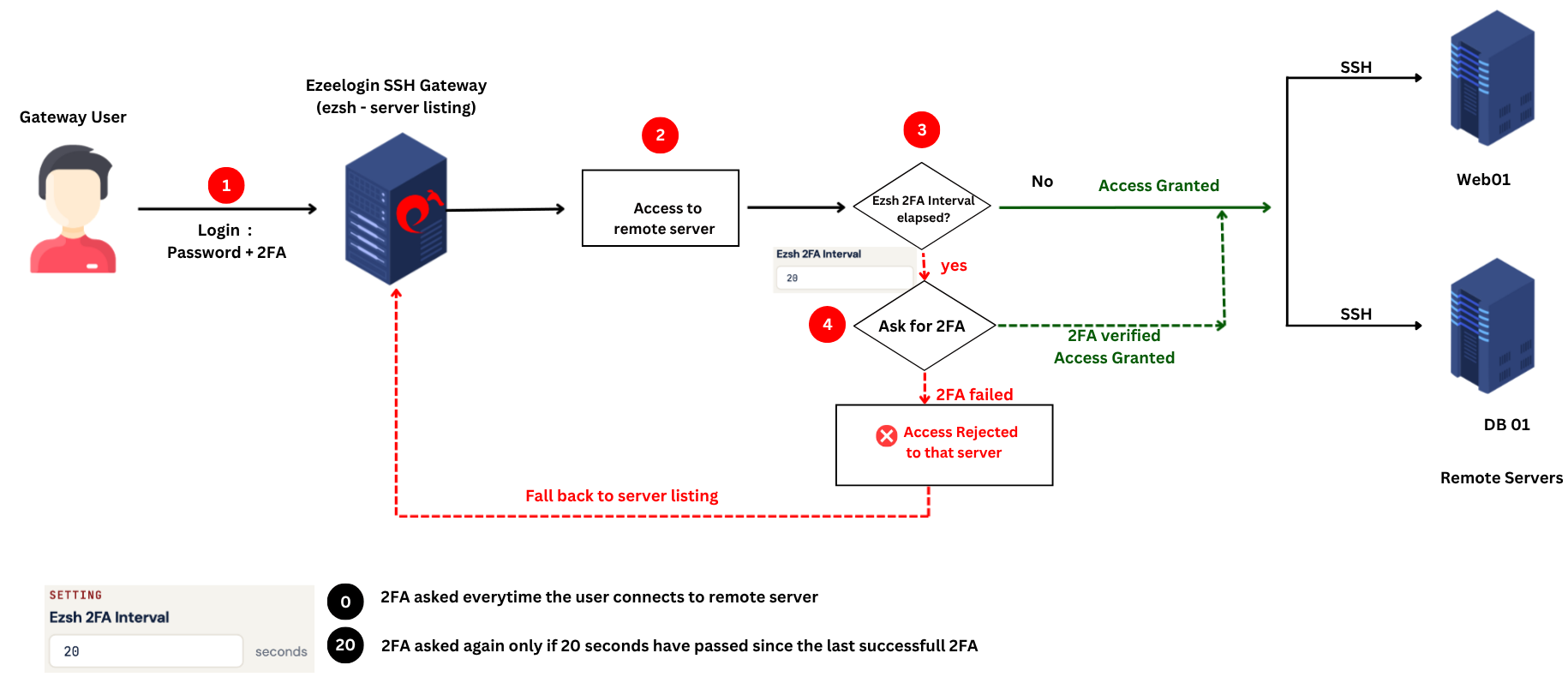
Step 1: Log in to the Ezeelogin SSH Gateway.
The user logs in to the gateway using their password and 2FA. This verification is required once per gateway session.
Step 2: Select a remote server.
The gateway displays the available remote servers. The user selects the server they want to access.
Step 3: Check whether the 2FA interval has elapsed.
- If the configured 2FA interval has elapsed, the user must complete 2FA verification again. Proceed to Step 5.
- If the interval has not elapsed, the user is granted access to the remote server without additional 2FA verification.
Step 5: Enter the 2FA code.
The user enters their 2FA code to verify their identity.
Steps to configure 2FA ( MFA ) before remote server access
Step 1: Open the Ezsh 2FA Interval setting.
Log in to the Ezeelogin UI and navigate to Settings -> General -> Two Factor Authentication -> Ezsh 2FA Interval.

Step 2: Set the interval and save
Note: The default value of the Ezsh 2FA Interval is 86400 seconds (24 hours)
Enter the required value in seconds and click Save. This value controls how often 2FA is rechecked when users access remote servers through ezsh. For example:
If the value is 20: 2FA is rechecked after 20 seconds have passed since the last verification.
If the value is 0: 2FA is rechecked every time a user connects to a remote server.
Step 3: Verify the 2FA prompt in ezsh
Log in to the backend (ezsh) and connect to a remote server. The 2FA method used for the initial ezsh login is prompted again, based on the configured interval.
In the example below, Google Authenticator is used for the initial ezsh login. The same method prompts for the code before the connection to the remote server is made. Once the interval expires, 2FA is required again for the next remote access.
Why use 2FA before remote server access?
Logging in to the jump server is only the first checkpoint. Requiring 2FA again before each remote server connection adds a second layer of protection for sensitive systems such as production databases, payment servers, and hosts that hold customer data. If a user’s session is left open or hijacked, the attacker still can’t reach your servers without the second factor.
Frequently asked questions:
1. What does the ezsh 2FA Interval do?
It sets, in seconds, how long a successful 2FA verification remains valid before Ezeelogin asks for 2FA again at remote server access.
2. What happens if I set the value to 0?
2FA is rechecked every time a user connects to a remote server.
3. Which Ezeelogin version supports this feature?
Ezeelogin 7.48.0 and later.
4. Does it use a different 2FA method from the initial login?
No. It uses the same 2FA method configured for the initial ezsh login.
Conclusion
Requiring two-factor authentication before remote server access gives your jump server a second checkpoint without forcing users to log in to the gateway again. Set the Ezsh 2FA Interval to 0 for maximum security, or use a longer interval if users connect to many servers in a short time.
Need help with the setup? Contact Ezeelogin support and our team will help you configure it.
Related Articles: