Error: User add failed. Cannot add user on other node: Authentication by SSH key failed!
How to fix 'Error: failed to add user on other node. SSH key authentication to remote node failed'?
Overview: This article addresses the error: "failed to add user on other node. SSH key authentication to remote node failed," providing troubleshooting steps for missing public keys, SSH port settings, sshd_config configurations, and more.
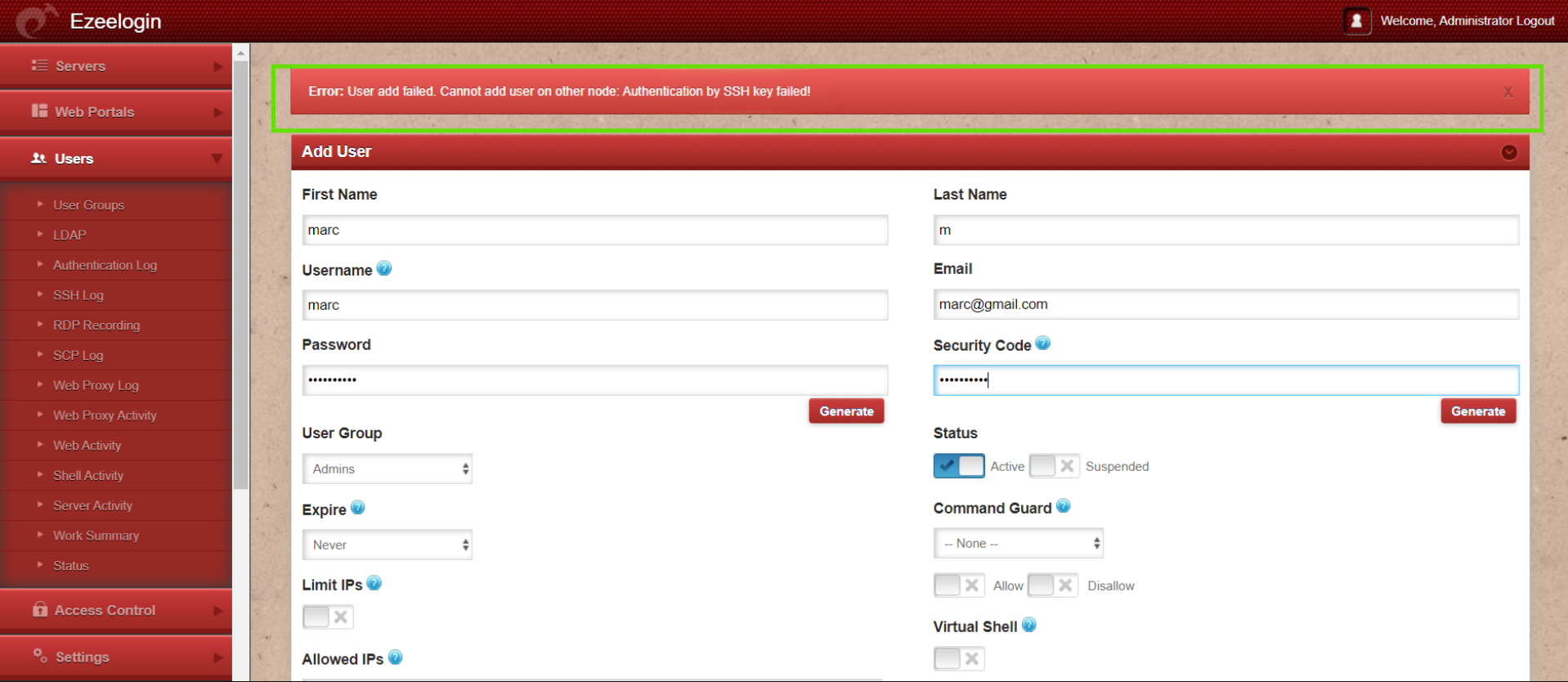
Check the following on the slave/secondary node
Step 1. The error 'User add failed Cannot add user on other node: Authentication by ssh key failed' would occur when the Ezeelogin installed node has its public key missing in /root/.ssh/authorized_keys. To add the key, execute the following command.
root@slave:~# cat /usr/local/etc/ezlogin/id_clkey.pub >> /root/.ssh/authorized_keys
Check if the key is back in the file.
root@slave:~# cat /root/.ssh/authorized_keys
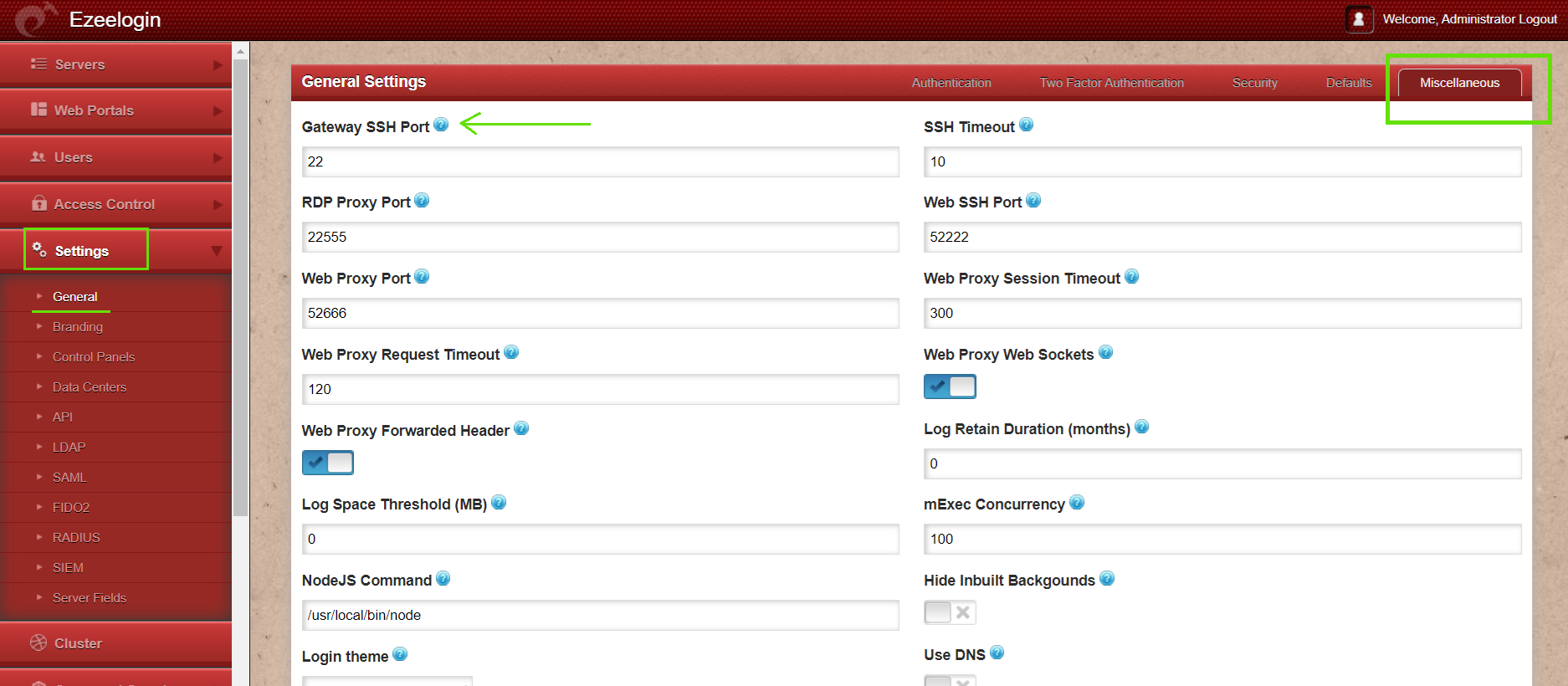
Step 2. Also, make sure that the port sshd is listening on the servers is given as the gateway port in Settings -> General -> Miscellaneous -> Gateway SSH port
Step 3. Also, make sure PubkeyAuthentication is set to 'yes' in the sshd_config (sshd configuration) file.
root@slave:~# vi /etc/ssh/sshd_config
#set PubkeyAuthentication to yes
PubkeyAuthentication yes
root@gateway ~]# service sshd restart
Also, run the following command to check if you have enabled the recommended sshd settings in /etc/ssh/sshd_config
Step 4. Make sure root login is permitted on the gateway server. You can check it by using the following command:
ssh root@localhost
And it should log you in; otherwise, edit /etc/ssh/sshd_config and set PermitRootLogin yes.
root@slave:~# vi /etc/ssh/sshd_config
#Add the following lines to the end of /etc/ssh/sshd_config to allow root login from localhost only
Match Address 127.0.0.1
PermitRootLogin yes
PubkeyAuthentication yes
#Replace MASTER_NODE_IP with your master node Ezeelogin IP ADDRESS
Match Address MASTER_NODE_IP
PermitRootLogin yes
PubkeyAuthentication yes
root@slave:~# service sshd restart
After, try to authenticate with the command. Make sure you are able to login after entering the password.
ssh root@localhost
Step 5. Also, make sure that the web user(apache, nobody, etc) that the webserver(apache/nginx) runs as is able to read the keys in the dir /usr/local/etc/ezlogin. Make sure to grant the read privileges to
chmod o r /usr/local/etc/ezlogin/id_clkey
chmod o r /usr/local/etc/ezlogin/id_clkey.pub
OR
usermod -G <current_groupname_of_id_clkey_files> <webserver_user>
Step 6. Find out which key type is used by the gateway server by running the below command.
root@slave:~# ssh-keygen -l -f /usr/local/etc/ezlogin/id_key.pub
4096 SHA256:n4lmX53/gwkKB4+nSQ30hZXxXK+DRG1LPc7N1KN/1Ag ezlogin (RSA)
Step 6(A): Open /etc/ssh/sshd_config file and append the below line to enable RSA key type and restart SSHD.
root@slave:~# vi /etc/ssh/sshd_config
PubkeyAcceptedKeyTypes +ssh-rsa
root@slave:~# systemctl restart sshd
If you are running Ezeelogin version 7.37.8 or above and using ssh-rsa or ssh-dss keys, it is recommended to change them to ed25519 for better security and performance.
How to reset cluster keys in ezeelogin Master-slave Configuration ?
Step 6(B): Check for the SSHD error logs of the gateway server.
For CentOS
root@slave:~# /var/log/secure
For Ubuntu
root@slave:~# /var/log/auth.log
Refer to the below article if you get "userauth_pubkey: signature algorithm ssh-rsa not in PubkeyAcceptedAlgorithms"
Note: If you have enabled Allow Or Deny SSH Access To A Particular User Or Group in sshd.conf, make sure that the user root is allowed.
Step 7: Check if the LoginGraceTime parameter is enabled and set to a safe value.
root@slave:~# vim /etc/ssh/sshd_config
LoginGraceTime 30